
Troubleshooting
Fix common project setup, analysis, preview, assistant, and sharing problems.
Choose the symptom that matches what you see and work through its checks. This guide covers project setup, analysis, previews, assistant connections, and sharing.
Git is missing
Hexby needs Git on the same computer. In Terminal or PowerShell, run:
git --versionIf the command is not found, install Git from the official macOS, Windows, or Linux page, then restart Hexby.
GitHub CLI (gh) is optional and is not required to open a project or share a
change through Hexby.
The project will not open
Check that:
- You selected the app folder, not an inner code folder such as
srcor a generated build folder. - You have access to the project files.
- The project uses React, Next.js 13 or later, or Angular 17 or later.
- Dependencies are installed on the machine running Hexby.
- The project has any required environment values or local services available.
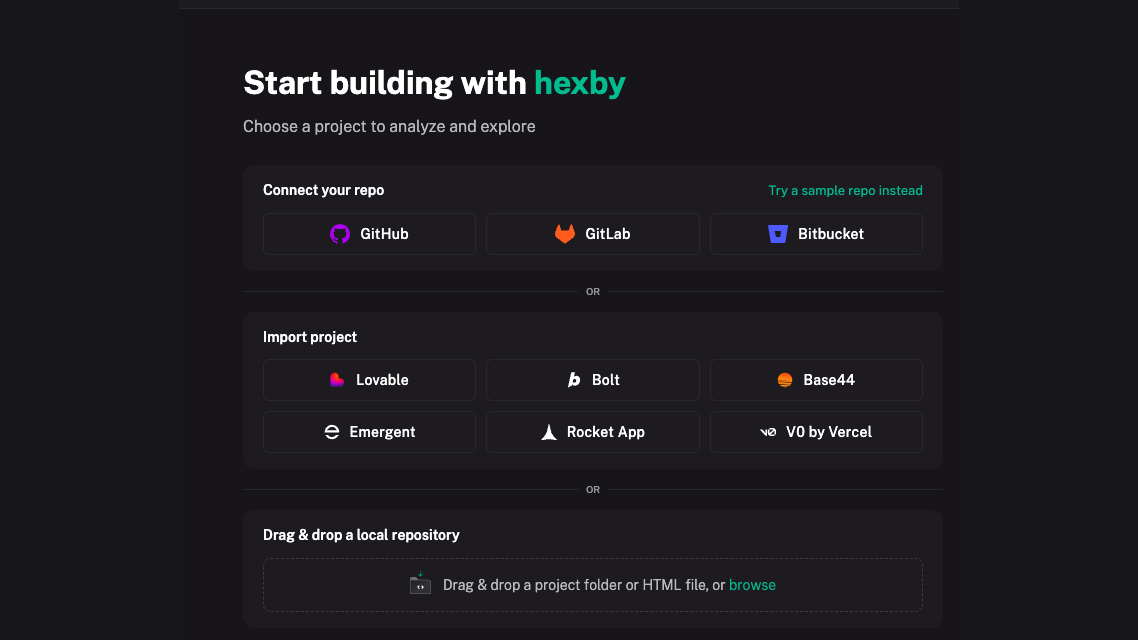
For a local project, choose the app folder you want Hexby to analyze. If the repository contains several apps, choose the folder for the right app. For a remote project, select it in the project picker or open a local checkout. See Install and open a project for setup steps.
The canvas is empty or incomplete
Wait for the first analysis to finish. If the canvas is still incomplete:
- Reset any active search or component filters.
- Confirm that the correct project and branch are open.
- Check whether only previews are missing or whether pages and components are missing too.
- Reopen the project after installing dependencies.
If pages and components are present but a few previews are missing, select an affected component and read its status. A blocked preview may need more context; it does not mean analysis of the whole project failed. See Preview status meanings.
Analysis is not progressing
Use the progress card to see which stage is running. The scan moves through project setup, component discovery, preview setup, and preview rendering. The card may show a completed/total count while previews render. See Preview status meanings for each status.
If the status stops changing, confirm that Git and project dependencies are available and that any required environment values or services are running. Then close and reopen the project. If only a particular component is stuck, check its preview status instead.
Preview status meanings
| Status | Meaning |
|---|---|
| Scanning project | Hexby is reading the project and its setup. |
| Finding components | Pages, components, and relationships are being identified. |
| Preparing to render | The preview environment is being prepared. |
| Rendering previews | Component visuals are being generated. |
| Ready | The preview is usable. |
| Loading or pending | Hexby is still preparing the preview. |
| Partial | The preview works, but one or more fallback values remain. |
| Blocked | The preview needs more information or setup. |
| Preview render failed | The last render attempt did not produce a usable preview. |
A preview status is not a verdict on production code. Use Preview App when the isolated preview is not enough.
A component says “Preview render failed”
The component was found, but Hexby could not render it with the information available in isolation. It may need example data, app-wide setup, navigation, environment values, or a specific UI condition.
Open the component to read the reason. Use its fix or enrichment action when available, or use Preview App to inspect the component in the full application context. See Enrich Component Previews with AI for preview-only data.
A preview is stale or does not update
- Wait for the refresh to finish.
- Confirm that the project and branch you edited are open in Hexby.
- Make sure the source file was saved, then open Review Changes and check the changed-file list.
- Reopen the component or page.
- For issues involving sign-in, an external service, or a specific route, check the app in Preview App.
If the preview still shows the old result, note the project, component, and status message before contacting support from the workspace.
Preview App will not start
Check the command shown in Preview App:
- Install the project dependencies using the package manager in its README.
- Run the command from the app folder you opened in Hexby.
- Check that the port is not already in use.
- Make sure required environment values and local services are available.
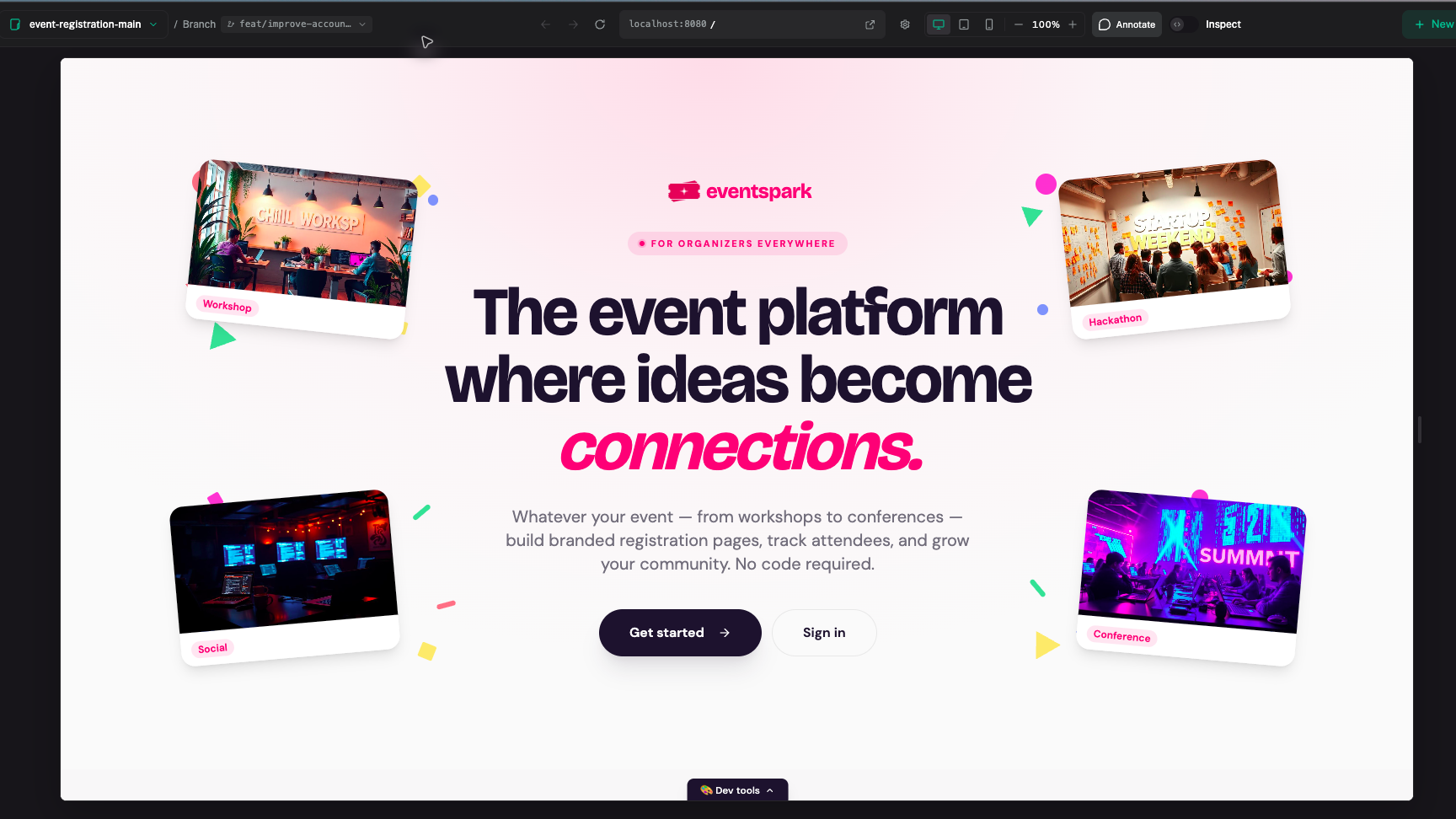
If Hexby detected the wrong command, update the development command in Preview App and restart it. When startup fails, use the first specific error in the terminal output to guide the next step; avoid changing unrelated project files.
After startup succeeds, the running app appears in Preview App with its route, screen-size controls, and annotation tools available.
An AI assistant will not connect
Confirm that:
- The assistant is installed on the same machine.
- You are signed in to the assistant outside Hexby.
- Hexby is running as the same user that owns the assistant configuration.
- Any browser sign-in, device code, or API-key step was completed.
- The assistant is not already busy or locked by another session.
Hexby does not install the assistant or provide its usage credits. If it still will not connect, check the assistant’s own status and account, then try again after any other assistant session has finished.
The assistant made an unexpected change
Open Review Changes and inspect the changed files. Ask the assistant to explain or revert the unexpected edit, then review the next diff. Record any rule that should guide future requests in Project Guidelines. Resolve unrelated edits before sharing the change.
Changes do not appear in the review
Confirm that the source file was saved and that Hexby has the correct project and branch open. Preview-only values and enrichment data do not create source code changes.
If there is still no changed-file list, the assistant may not have edited the project source. Ask it to make the requested change in the source files, then wait for the preview to refresh.
GitHub sharing fails
Check that:
- The GitHub account is authorized in Hexby.
- The account can access the selected repository.
- The correct repository and branch are linked.
- There is a saved source change or unpushed commit to share.
- An organization approval is not blocking the GitHub connection.
If the repository or branch is wrong, correct it before sharing. If GitHub reports a conflict or missing base, resolve it in your usual Git workflow and try again.
Get more help
In Hexby, choose Get Help in the workspace sidebar, or open Settings → Help & Feedback. The form lets you choose Report an issue or Ask a question. You can also use General feedback or Request a feature for other feedback.
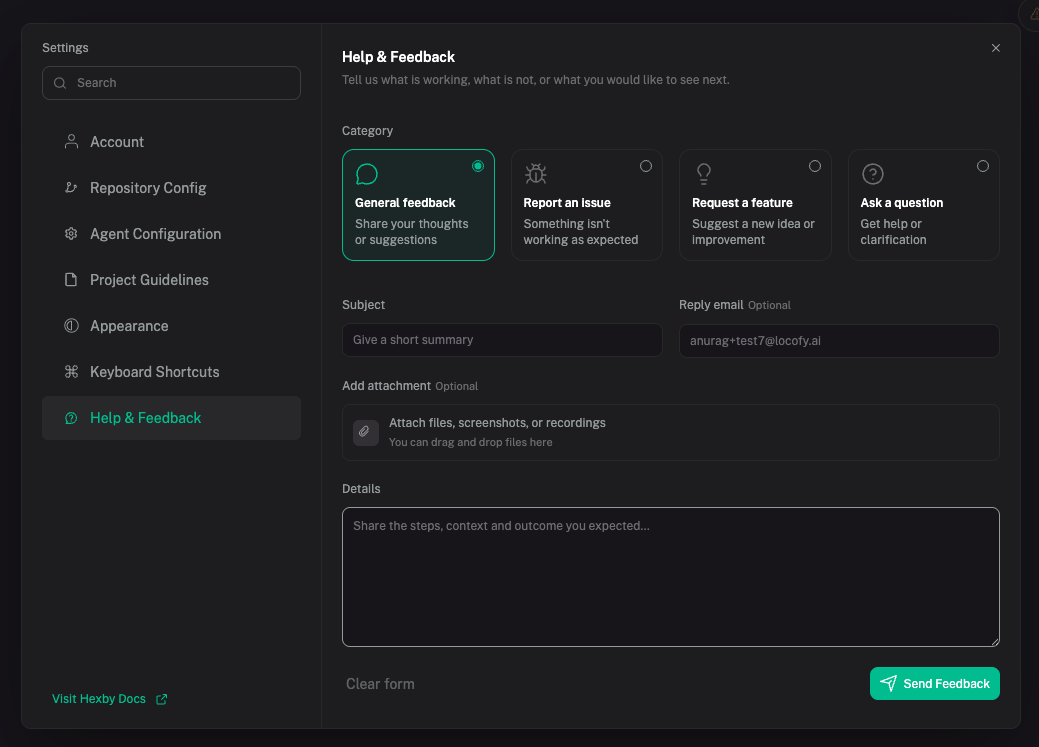
Give the request a short subject. In Details, include:
- The project name
- The view and component involved
- The status or error message
- The steps you took
- What you expected and what happened instead
The reply email is optional. Attach a screenshot or recording if it helps show the issue. Do not include passwords, API keys, tokens, or production secrets.
For community help, use Talk to us on Discord.
Related guides
- Quickstart to follow the main workflow.
- Install and open a project for setup steps.
- Preview App to inspect the running app.