
Quickstart
Use Hexby and your coding assistant to fix a UI issue and review the result.
Start with a UI change you want to make. Hexby gives your coding assistant the selected screen or component as context, then lets you check the result and code before sharing it.
Starting from an existing project? Choose Remix to build a new app from a separate copy.
1. Download Hexby and open your project
Download and install Hexby, then launch it and sign in.
Before opening a project, make sure you have:
- A React-based project, Next.js 13 or later, or Angular 17 or later. Install its dependencies first; if you need help, see Install and open a project.
- Git installed on the same computer. Git tracks the code changes Hexby reviews.
Run
git --versionto check. If that command fails, follow the Git setup in Install and open a project. - A supported coding assistant installed and signed in on the same computer. Its plan and usage limits still apply; see Connect your agent.
- GitHub access if you want Hexby to create a pull request. GitHub CLI (
gh) is optional.
Save or set aside other code changes first so they’re easy to distinguish from this task.
Now choose Connect your repo for GitHub, GitLab, or Bitbucket, or browse to a project folder on your computer. Select the branch you intend to edit. A branch is a separate line of work in Git; its changes stay separate until you merge them.
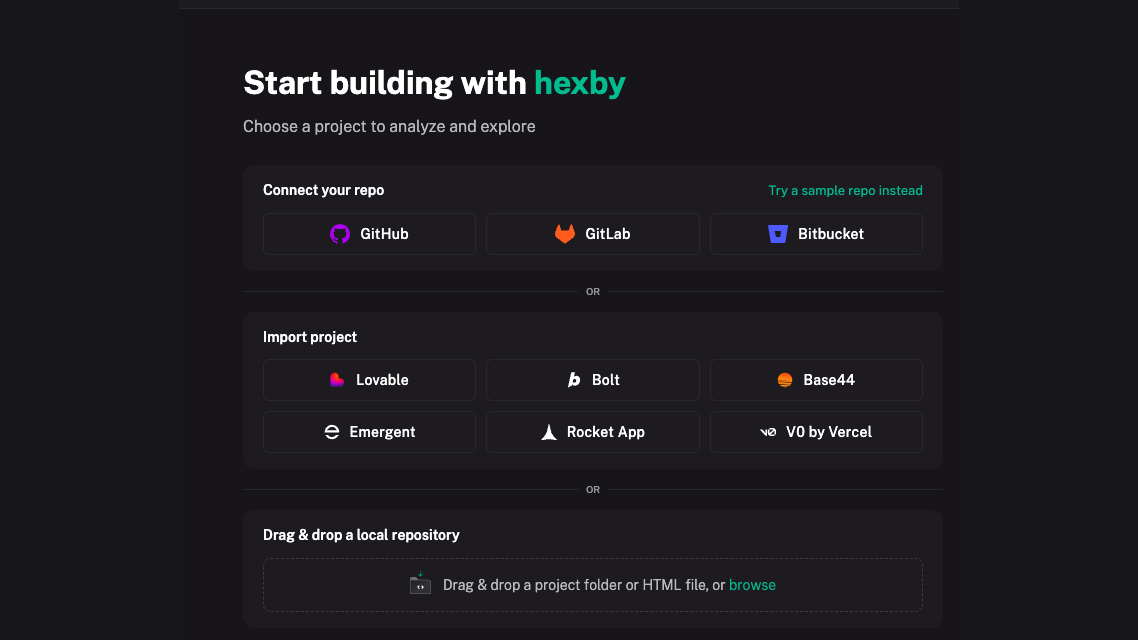
After your project loads, connect the coding assistant you use when prompted. See AI Assistant for setup help.
2. Find the screen or UI element to improve
As Hexby scans your project, choose the view that helps you find the right UI:
- Component Map: see how pages and components connect. Start here if you’re unsure where an element lives or what else may use it.
- Pages: find the full screen where the issue appears.
- All Components: search reusable elements, such as a card or button.
Select the screen or component you want to improve. For a component, Component View shows an isolated preview of a reusable element. Scanning and analysing your project does not change your project code.
If a preview is blocked, select it and click Fix with agent or follow the preview status meanings.
3. Make a focused improvement
Choose the editing approach that fits the task:
-
Point to an issue: Annotate the element in the preview or component view, then describe the fix in Chat. This gives your assistant a precise visual reference. See AI Assistant.
-
Ask for a change: Select the screen or component, open Chat, and say what should improve and what should stay the same. You don’t need to name the selected component; Hexby gives the assistant that context. For example:
Make the next steps easier to scan so registrants know what to do. Keep the confirmation message and email details unchanged. Tell me which files you changed.
-
Explore directions first: Explore with Hexby lets you compare and refine visual ideas before implementation.
The connected assistant edits your project code. Review its permission prompt before allowing edits.
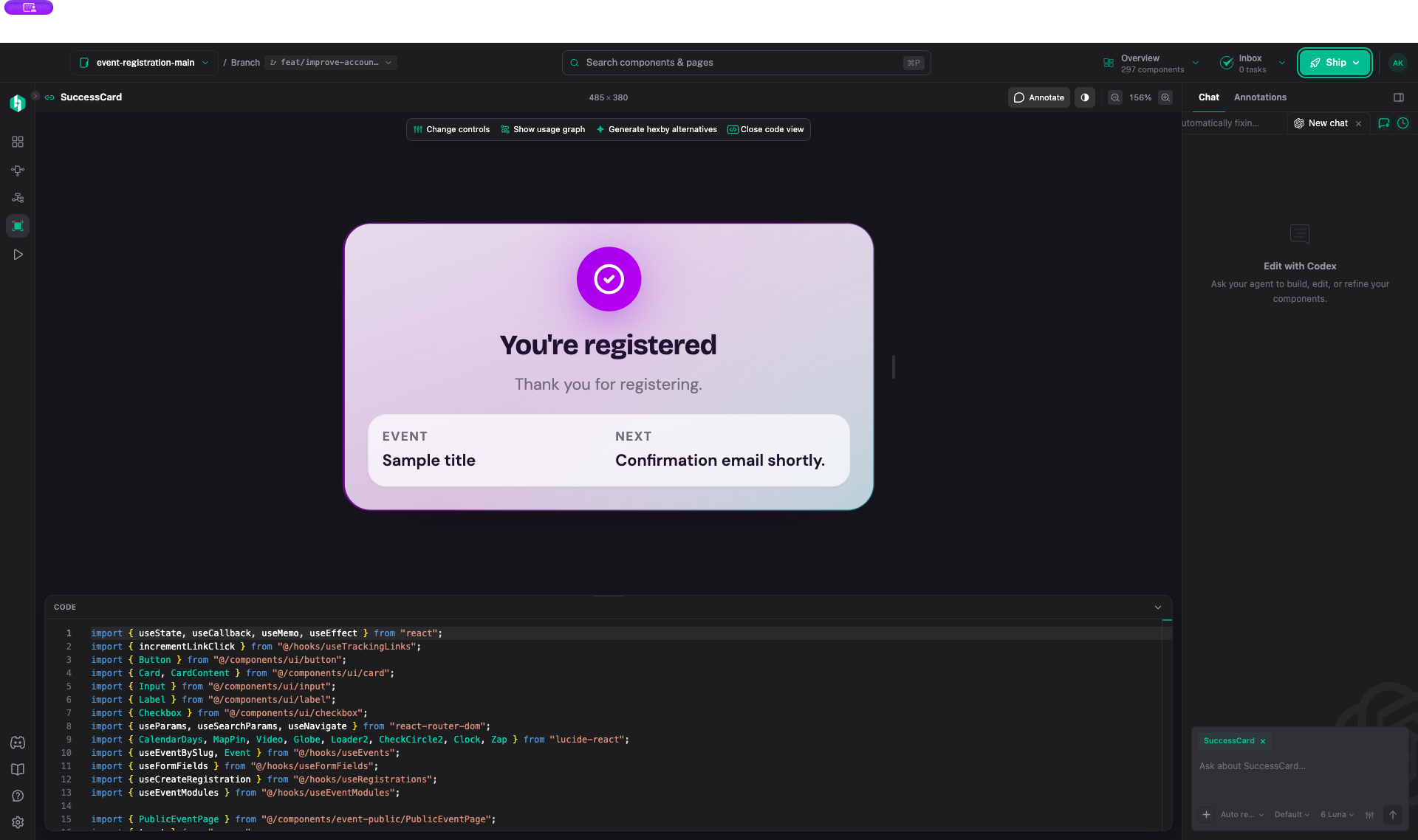
4. Check the result and code
When the assistant finishes, check the preview and changed files. Compare the same page or component at the same screen size, with the same form values and selected options. Confirm the result matches your request and each changed file belongs to it. If the change depends on a full page or route, check it in Preview App.
Changes made with preview controls are temporary and won’t appear in your code. Ask the assistant to make the change in project files if you want to keep it.
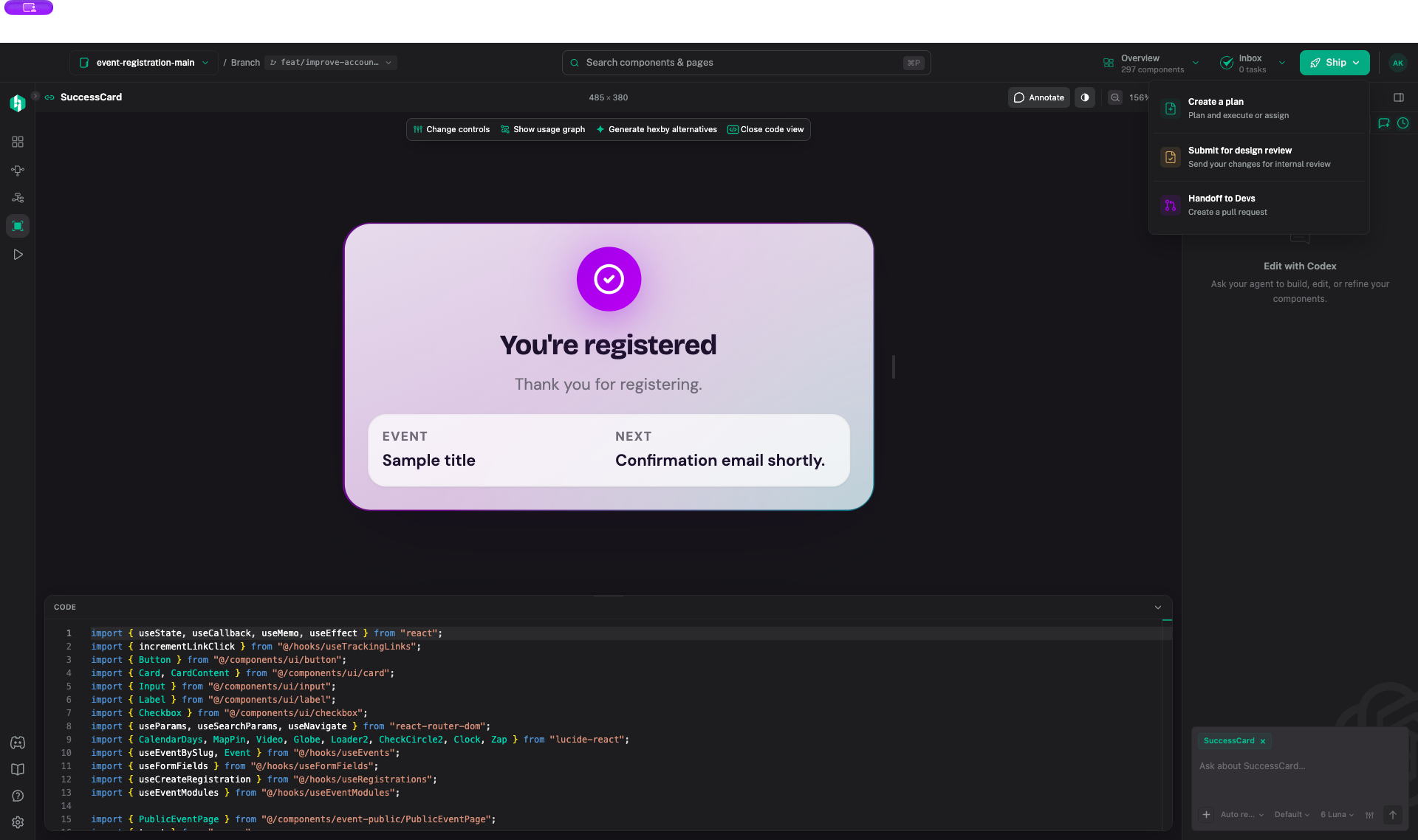
To compare the original with your change, open the Ship menu in the top right and choose Submit for design review. This opens Review Changes. The layout has three areas:
- Left: the list of changed pages and components. Select an item to review it.
- Center: the original and updated previews. Use the toolbar above them to change the comparison view or screen size.
- Right: reviewer comments and discussion for the selected change.
Review Changes opens so you can inspect the differences before you send the review to someone.

5. Share the result
Choose how you want to move the change forward:
Get teammate approval
- In Review Changes, choose Send for review or Copy link and share the review with your teammate.
- Your teammate compares the before and after, then clicks Approve all.
- When the review shows Approved, choose Ship → Handoff to Devs, then Open pull request to continue in GitHub.
Continue on your own
For a GitHub project, review the code and choose Ship → Handoff to Devs, then Open pull request. Teammate approval isn’t required. For GitLab or Bitbucket, commit and push your changes, then open a merge request or pull request on that service. See Make and Review Changes for details.
What's next
For setup and preview problems, see Troubleshooting.