
Enrich Component Previews with AI
Investigate failed component previews and add safe example data with your connected assistant.
Sometimes a component cannot render in its isolated preview, even though it works in the running app. Use Fix with agent to ask your connected assistant to investigate the preview or add safe example data so you can inspect the UI.
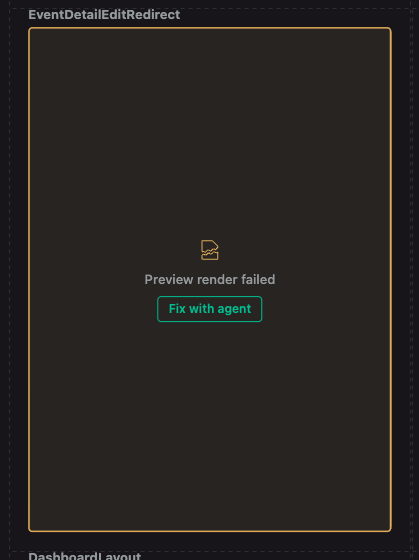
Find components that need attention
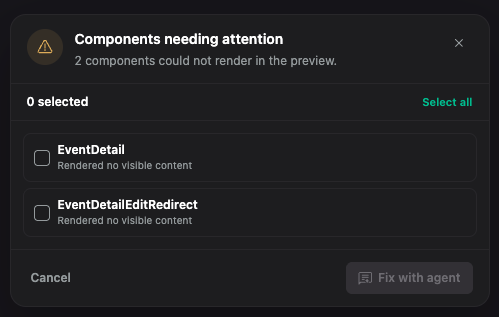
In the workspace, click the warning button with a count at the top to open Components needing attention. The panel lists components that could not render, so you can select one or more to investigate.
The panel lists each component and its preview status. Select one or more components, then choose Fix with agent to ask your connected assistant to investigate them.
Why a preview may fail
Hexby renders a component separately from the full app. A preview can fail when it needs something that the isolated render does not have, such as:
- Required props or data from an API
- A router, authentication, theme, or other app-level provider
- Environment values, an external service, or browser-only behavior
- An import, asset, or setup step that is unavailable to the preview
A failed isolated preview does not by itself mean the component is broken in your running app. Use Preview App when it depends on navigation, sign-in, connected services, or other whole-app behavior.
Ask the assistant to enrich a preview
Choose Fix with agent, then describe the missing data or state you want to see. For example:
Populate this preview with three realistic items so the loaded state is visible. Keep the data shape the component already expects, and do not change project source.
Requests to Fix with agent use your connected assistant and count toward its plan, credits, or token usage. Hexby does not include AI usage; the cost and limits depend on your assistant provider and account.
Wait for the preview to refresh, then check that it contains safe, meaningful example content. Do not use customer data, credentials, or production secrets.
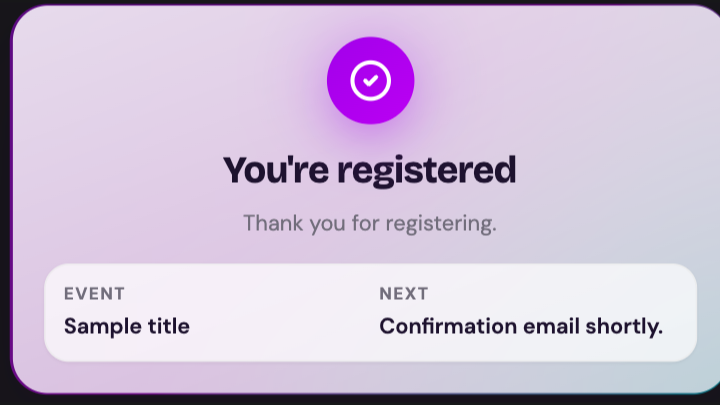
If the component still cannot render, ask the assistant to investigate its preview setup separately. For example:
The preview is still blank. Inspect the missing data or dependency, fix the preview setup, and try again. Do not change project source.
Review the enriched preview
When the preview is available:
- Check that it contains meaningful content.
- Inspect the state and props that matter to the design decision.
- Compare the result with the source and full application when needed.
Use the enriched preview as a design and implementation aid. Do not treat generated example data as real product data.
Source-code and privacy boundaries
When you only need an example state, ask the assistant to keep the change in preview data and not edit project source. Review any proposed source changes before keeping them. Never paste secrets into an enrichment request.
Next step
Return to Component View to inspect the enriched state, or use Preview App when you need the full application context.