
Project Guidelines
Give connected assistants project-specific rules they can follow.
Set Project Guidelines once to help your connected assistant follow your team’s patterns in future requests. Add rules you would otherwise repeat in chat.
Useful guidelines cover:
- Existing components, spacing, color, and type
- Responsive and accessibility expectations
- Loading, empty, and error states
- Naming, files, and testing
Guidelines inform assisted work; review each code change as usual.
Where guidelines come from
Hexby can include project instructions such as AGENTS.md or CLAUDE.md in
the guidance shown to your assistant. Which files are available depends on the
project and assistant.
Open Project Guidelines
- Open Settings.
- Choose Project Guidelines.
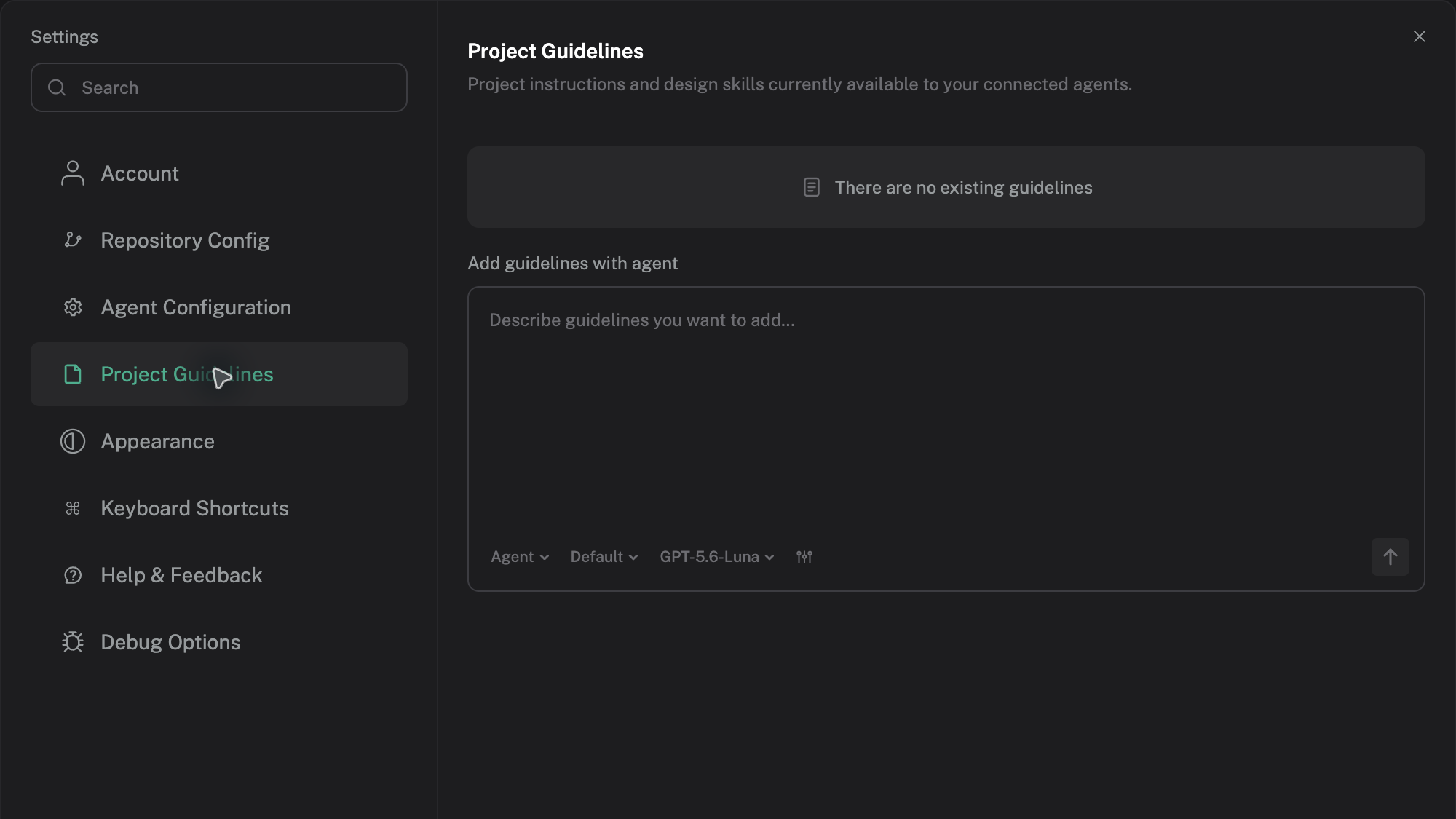
Add a rule with your assistant
Describe the rule you want in the Add guidelines with agent prompt. For example, ask for a visible keyboard focus state on every new form control.
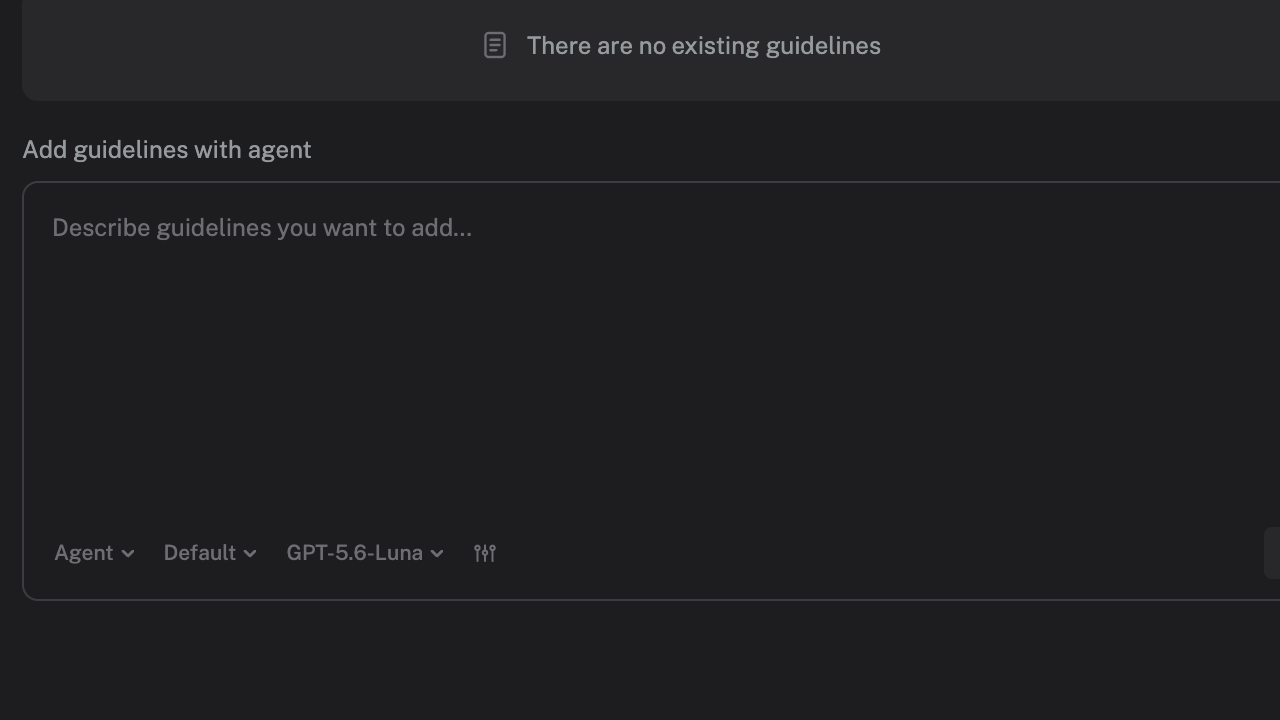
Review the proposed diff before keeping it. Adding a rule updates a real project instruction file, so check the saved change like any other source change.
Keep new UI consistent
Use guidelines to make new screens follow your design system:
Use the existing
ButtonandInputcomponents. Use the project's spacing and color tokens instead of adding new values.
Include the component or token names so the assistant knows what to reuse.
Carry expectations across changes
Save requirements you want applied to every relevant change, such as mobile layouts, accessible forms, and loading states:
Every new form control needs a visible label and keyboard focus state. Show validation errors beside the field and keep entered values after an error.
Turn feedback into a reusable rule
When the same correction comes up in reviews, ask your assistant to save it
with /guidelines:
/guidelines On mobile, stack form fields in one column and keep the primary action full width. Follow the existing registration form pattern.
Review the instruction-file diff before keeping it. In Settings → Project
Guidelines, select an available AGENTS.md or CLAUDE.md to read or edit the
saved rules. Update them when your team's patterns change.
Use the rules in your next request
After saving a rule, ask for a concrete change:
Update the account form using our project guidelines for mobile layouts and accessible validation.
The assistant uses the instructions it reads to guide implementation. Check the result against the rules when reviewing the change.
Next step
Use AI Assistant to apply project guidance in a focused request.