
All Components
Find reusable UI and check where it appears before changing it.
Need to improve a button or card that appears across your app? All Components puts the reusable UI Hexby found on one canvas, so you can identify the right piece and check where it is used before changing it.
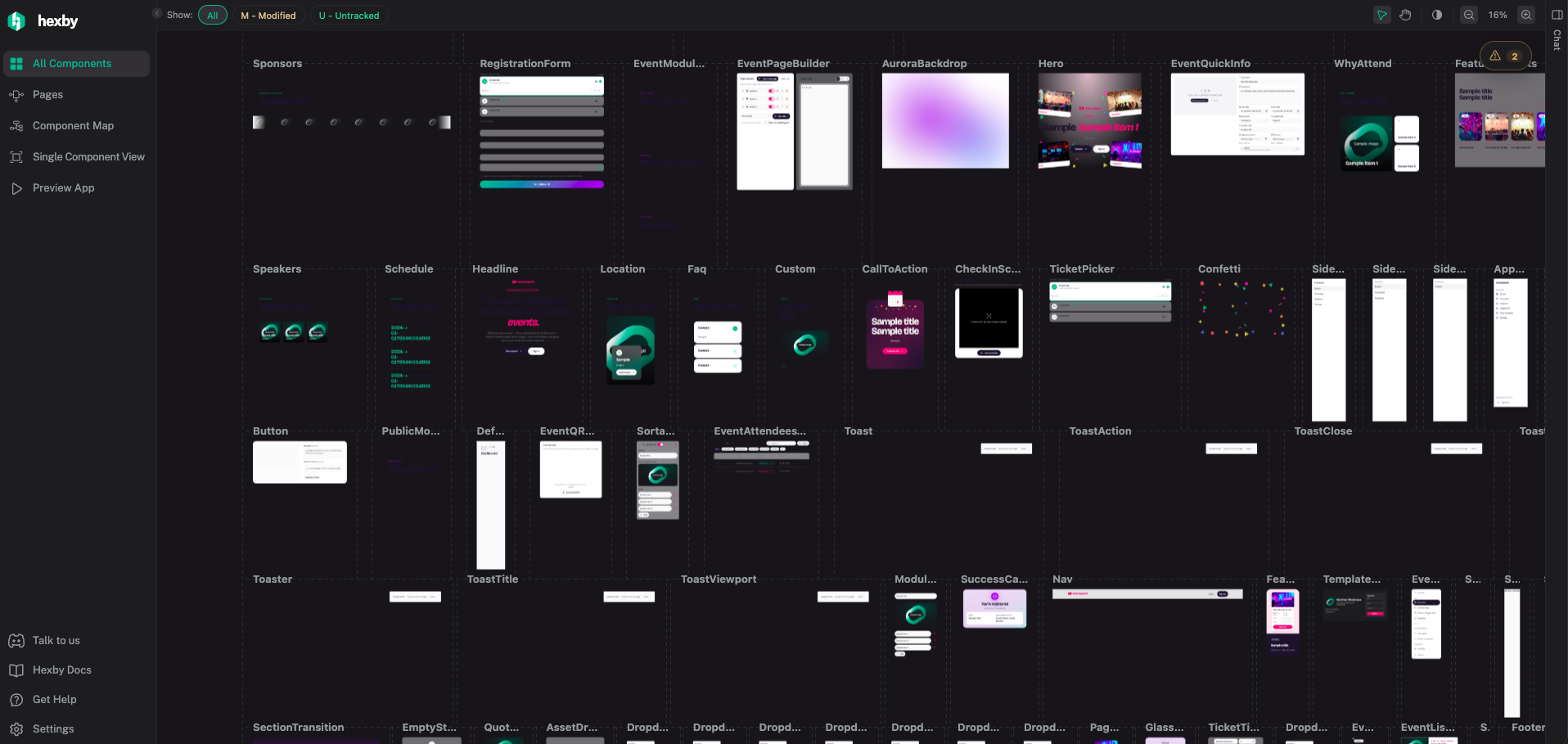
Find the UI you want to change
- Search for a component or page by name in Search components & pages.
- Expand the sidebar to browse the component list, or scan the preview cards on the canvas. Zoom and pan to see more of the inventory or inspect a card closely.
- To find work already in progress, use M - Modified for edited files or U - Untracked for new files. Select All to restore the full inventory.
Select a component preview to open its actions. From there, inspect its controls, see where it is used, or switch to another view. Design ideas can be explored with Explore with Hexby before the connected agent implements a change.
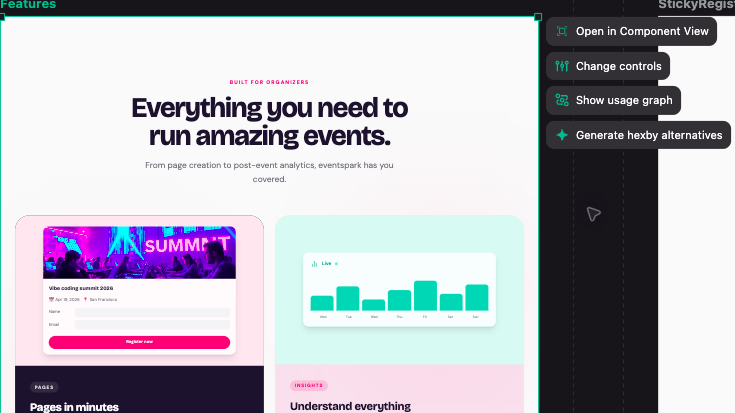
- Choose Open in Component View to inspect it on its own.
- Choose Change controls to try sample values or states in the preview. These controls do not change your project.
- Choose Show usage graph to see which pages and other components use it. Use Pages for one screen or Component Map for relationships across the project.
- Choose Explore with Hexby from the component actions to compare and refine design ideas before implementation. See Explore with Hexby.
Check it in your app before changing it
Component previews use example data, so they may not reflect your app's real data or behavior. Open Preview App to check changes involving navigation, sign-in, or app-wide behavior.
If you can’t find or preview a component
Clear the search and select All. Still missing? Follow Troubleshooting. If the component appears but its preview is blocked, select it and click Fix with agent. For status details or help adding example data, see preview status meanings and Enrich Component Previews.
Ready to edit? Follow Make and Review Changes.