
AI Assistant
Connect your coding assistant, fix UI issues with visual context, and review the code changes in Hexby.
Found a UI issue you want fixed? Select the screen or component in Hexby and ask your coding assistant to improve it. Hexby gives the assistant that UI as context, then lets you check the preview and changed project files.
AI usage
Use your provider account. Hexby does not include AI usage. Your provider's sign-in, limits, and any charges still apply.
Connect your agent
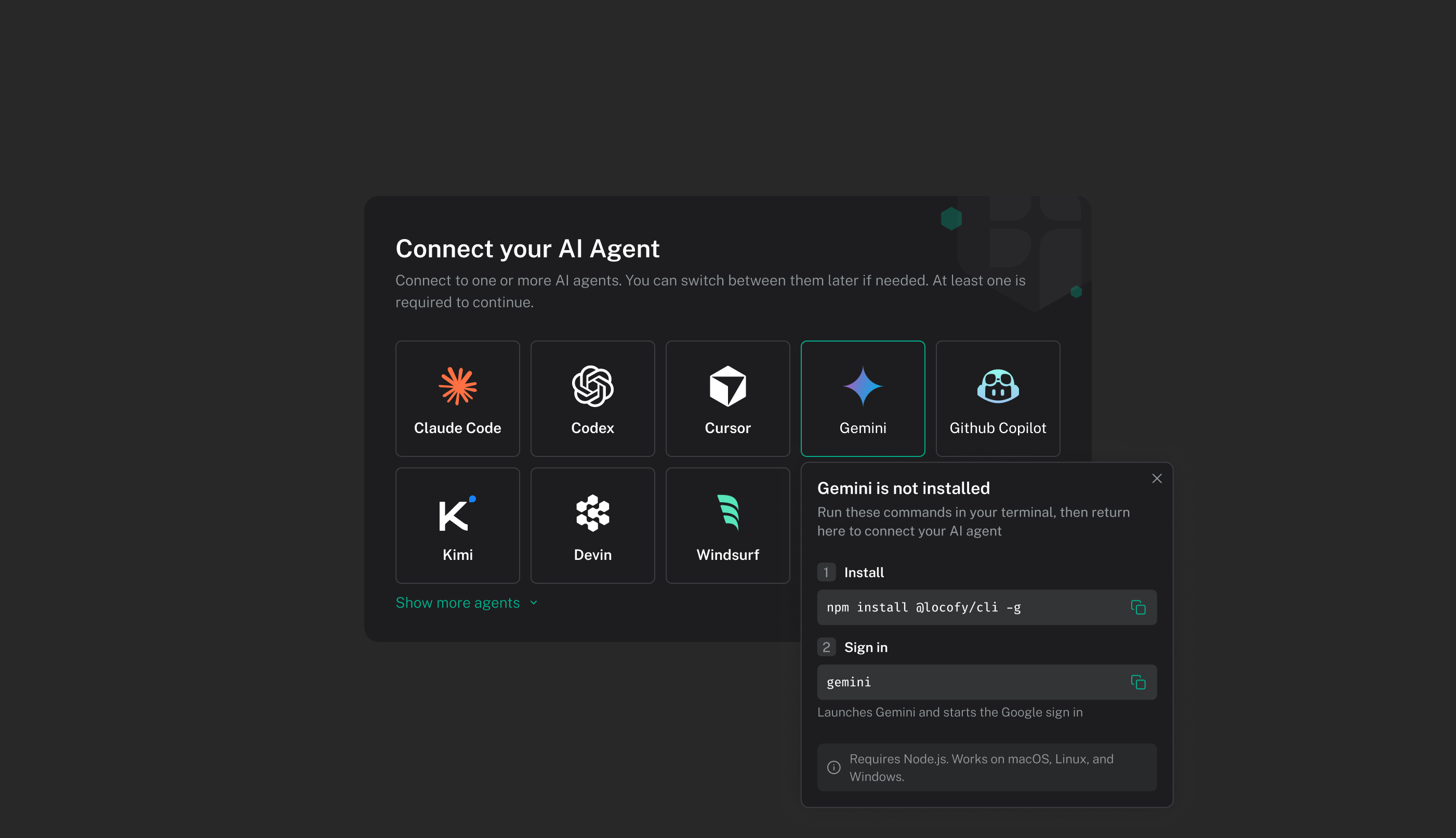
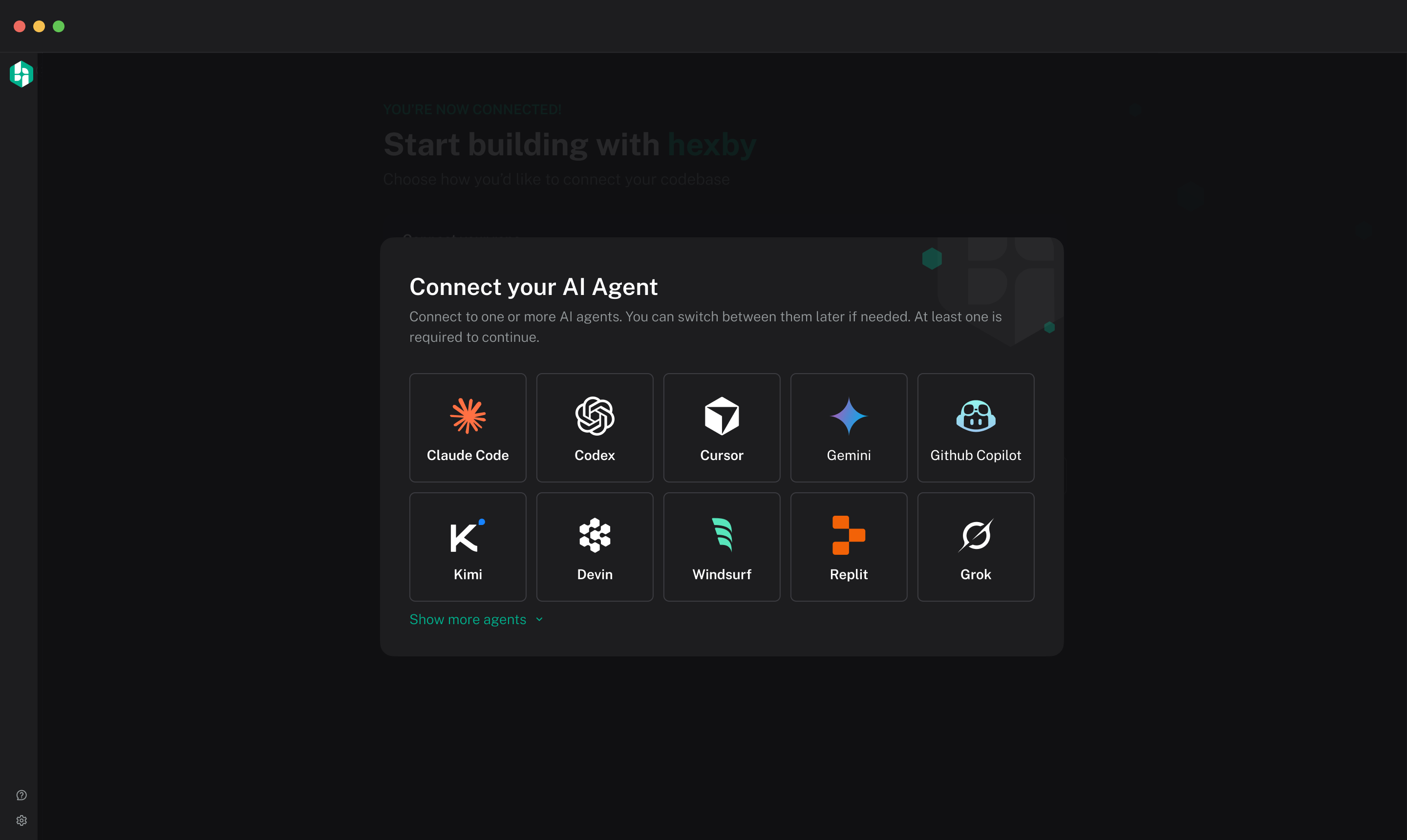
Before you start, open a project in Hexby and install and sign in to an agent on the same computer. After the project loads for the first time, Hexby asks you to connect one:
- Choose an installed agent and complete its sign-in or authorization.
- Review the permissions it requests.
- Open Chat and confirm the agent appears in its picker.
To change agents later, open Settings → Agent Configuration.
Common options include Claude Code, Codex, Cursor, Gemini CLI, and GitHub Copilot. The available options depend on what you have installed.
Ask for a UI change
Select the page or component where the issue appears. Open Component View to inspect a component on its own, then use Chat to describe the result you want and what should stay the same. Hexby includes the selection as context, so you do not need to name it in your request.
Adjust how the agent responds
Choose a model from the menu beneath the prompt. Open Session settings (the sliders icon) for other options, such as reasoning effort or fast mode. Available choices depend on the connected agent.
For example:
Make the success message easier to scan on mobile. Keep the current colors and content, and preserve visible keyboard focus.
Steer or queue a follow-up
While the agent is working, you can send another message in Chat:
- Steer: Give the agent a correction or new direction for the current task. For example: “Keep the existing colors.”
- Queue: Add a follow-up for the agent to handle after its current task finishes. For example: “Next, check the mobile layout.”
Refine the result
Check the preview when the agent finishes. If it is close, describe what still needs work. You can also:
- Use Annotate to point to an exact element.
- Try ideas and interactive previews with Explore with Hexby before editing.
- Click Fix with agent if a preview is missing, or add safe example data with Enrich component previews.
Check that it worked
Compare the preview with your request and inspect changed files in Review Changes. Preview controls may be temporary; use Apply changes or ask your agent to edit the project.
See Make and Review Changes for the full workflow.
If the agent does not connect
Check that it is installed and signed in for the same user account on your computer as Hexby. Complete any browser or device authorization, close a duplicate agent session that may be blocking the connection, then retry. See Troubleshooting for more help.
Supported AI agents
Hexby works with the agents you already use. Connect an installed agent in Settings → Agent Configuration:
- Claude Code
- Codex
- Cursor
- Gemini CLI
- GitHub Copilot
- OpenCode
- Cline
- Qwen Code
- Kilo Code
- Grok Build
- goose
- Kimi
- Factory Droid
- Auggie
- Devin
Hexby provides the visual interface and workflow. Your existing agent does the AI work using your account and tokens. Available models, settings, usage limits, and charges depend on your agent or provider.