
Install and open a project
Open a supported app in Hexby to explore its screens and components.
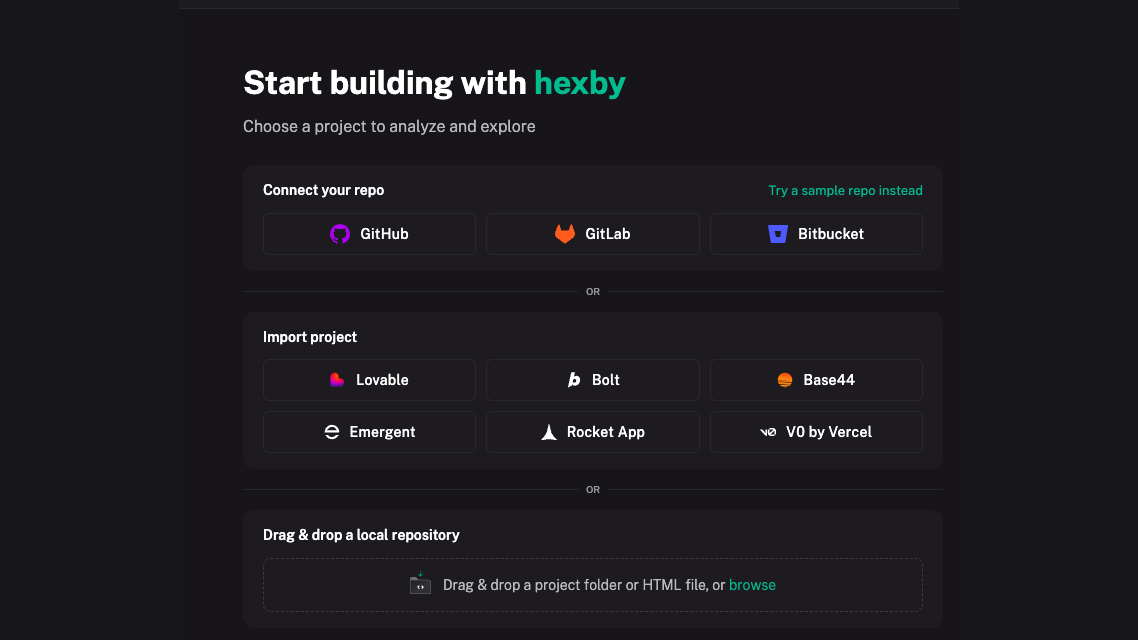
Install Hexby to explore your app visually, find the UI you want to change, and review the result alongside your code.
Before you start
Have:
- A Hexby account.
- A React-based project, Next.js 13 or later, or Angular 17 or later.
- Project dependencies installed.
- Git installed on the same machine, even for local projects.
If Git is missing, install it for macOS, Windows, or Linux.
Install Hexby
Open the installer, launch Hexby, and sign in.
Open a project
On first launch, choose the path that matches your project:
Local project
Open a local project
Open the folder that contains the project root and its dependencies.
- 01Find the project root
Choose the folder that contains
package.jsonand the lockfile. - 02Open it in Hexby
Select
New → Open project, or drag the folder into the project picker. - 03Let Hexby map the UI
Wait for the workspace to load, then start exploring Pages and Components.
For a local project, open the app folder that contains its package.json (the
file listing the app’s dependencies). If the repository contains multiple apps,
choose the folder for the one you want to inspect. Choose the branch you intend
to edit. A branch is a separate line of work in Git; changes stay separate
until you merge them.
If the project is not ready, install dependencies with the package manager and
command named in its README (for example, npm install), then see
Troubleshooting.
When the scan finishes, open a page to see the rendered screen and its component tree together.
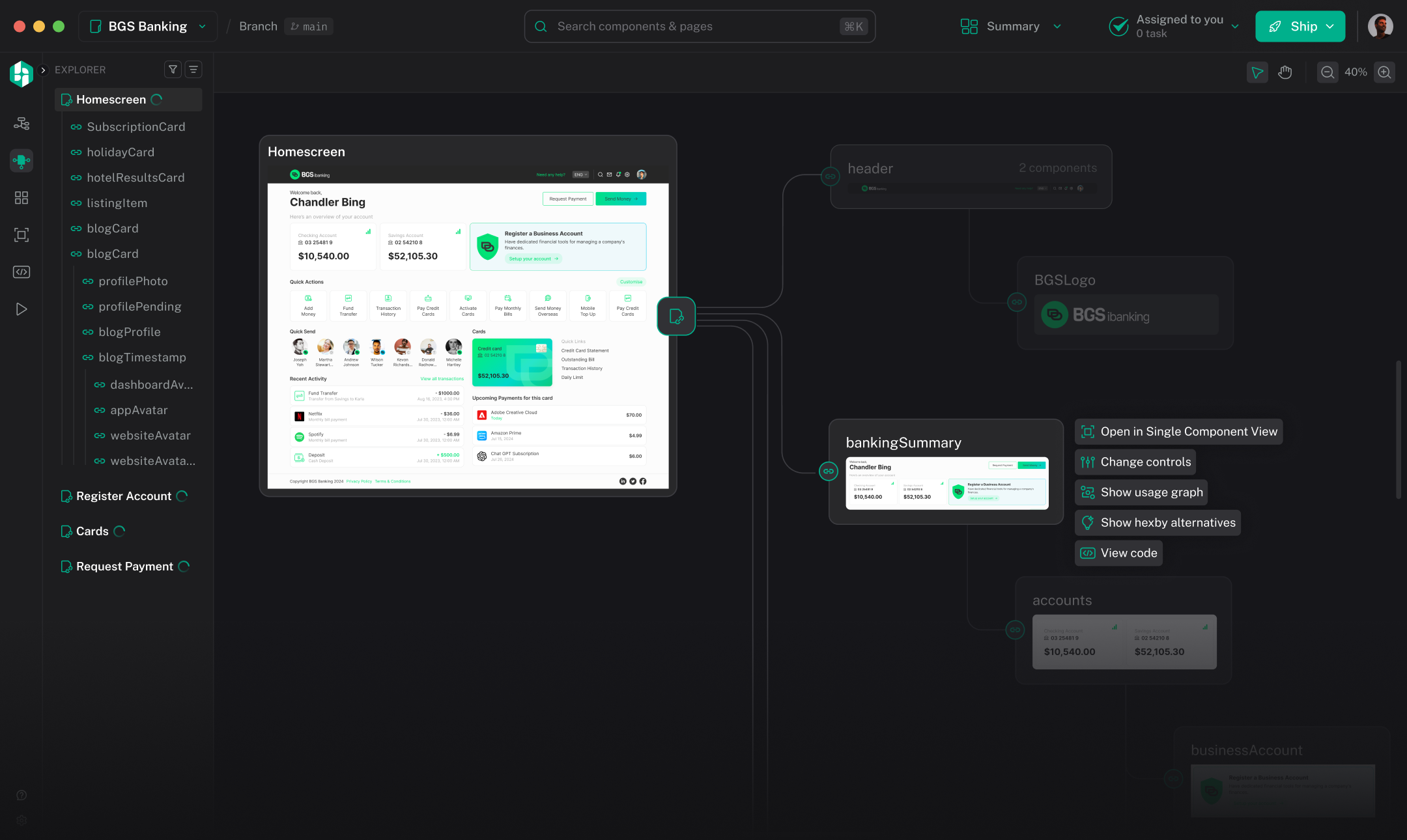
Hexby analyzes your project and prepares previews without changing your code. You can explore while it runs. If analysis stalls, see Troubleshooting.
For broken previews, open the warning count, select components, and choose Fix with agent. This uses your AI usage. See Enrich Component Previews with AI.
To switch projects later, use the project control in the top-left of the workspace.