
Component Map
Find which pages use a component before changing shared UI.
Use Component Map to see which pages and shared components connect, so you can check what a change may affect before editing.
Once you find a connected page, open it to check how its components appear together before deciding where a shared change belongs.
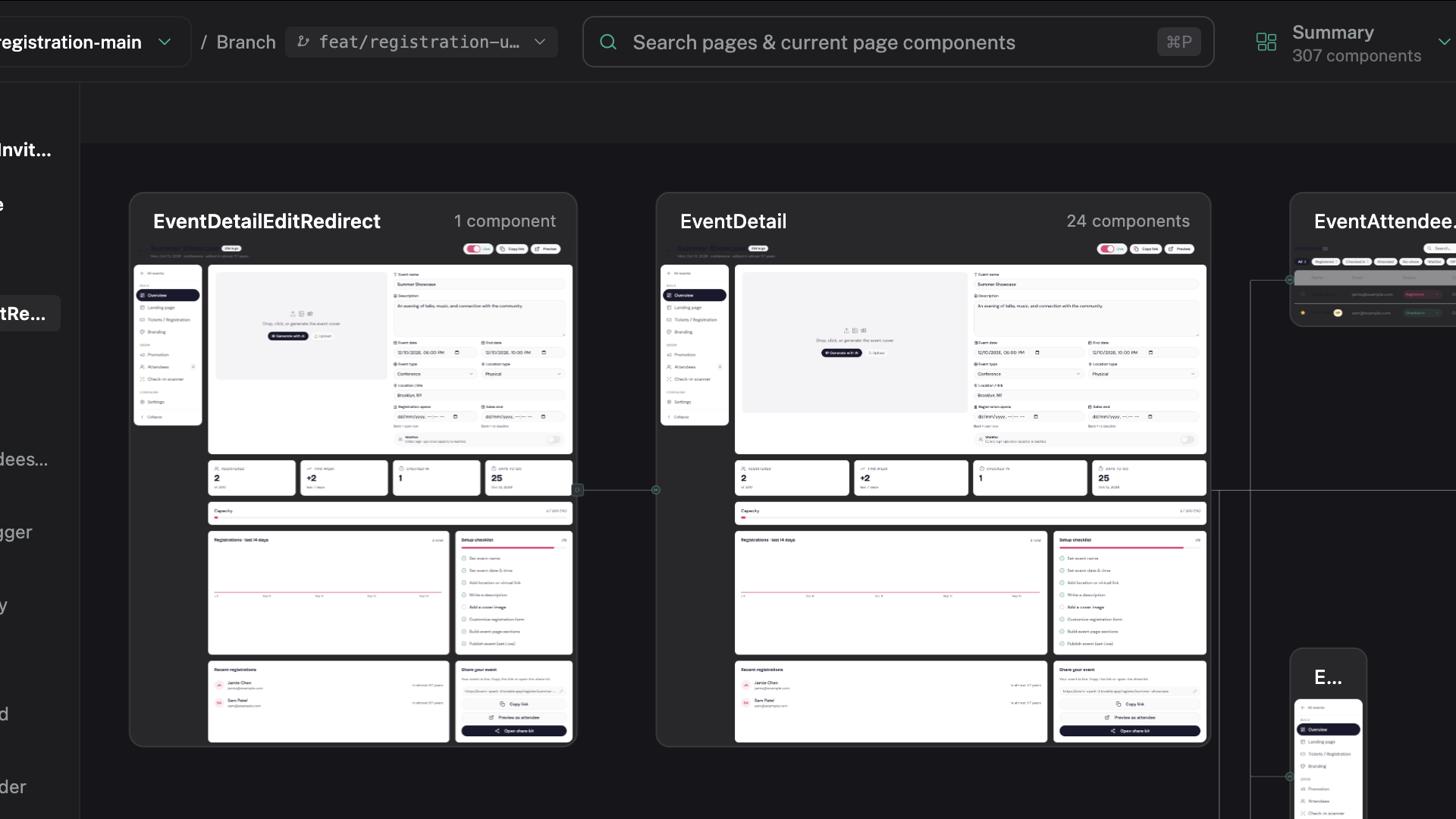
Read the map
Each node is a page, layout, or component. Lines show relationships between items. Select a shared component to see which pages and other components connect to it.
The map shows relationships found in source code. It does not show every runtime state or route, so open the relevant page or app before confirming an impact.
Select a node
Select a node to open actions for:
- Component View to inspect its preview and available UI conditions
- The usage graph to see which pages or other components use it
- An alternative or assisted change, when available
If a preview is blocked, click Fix with agent and continue in chat.
Check change impact
Before changing a shared component:
- Select it on the map.
- Check the connected pages and components to see what may be affected.
- Open a relevant page to check the component in context.
- Review the updated preview and changed files after the edit.
Map or Pages?
Use Pages to understand one screen. Use Component Map to understand the wider project. Use All Components to find a component by name.
If the map is empty
Wait for analysis to finish, then reset active search and filters. If the map is still empty, see Troubleshooting.
Next step
Open Component View for a focused preview and usage view.