
Turn a Figma design into code
Use a Figma screen as a reference while your assistant builds it in your project.
Use a Figma screen as a reference when you want your coding assistant to build or update the matching UI in your project. Connect Figma once, then share the design link in chat with a short description of what to implement.
Connect Figma
- Open Settings and select Account.
- In the Figma card, choose Connect.
- Select Continue to Figma. Sign in to the Figma account that can access the design you want to use.
- Review the authorization prompt and allow Locofy Connect to read your Figma files and libraries.
- When the connection confirmation appears, return to Hexby. The connection belongs to the Hexby account shown on the connect screen.
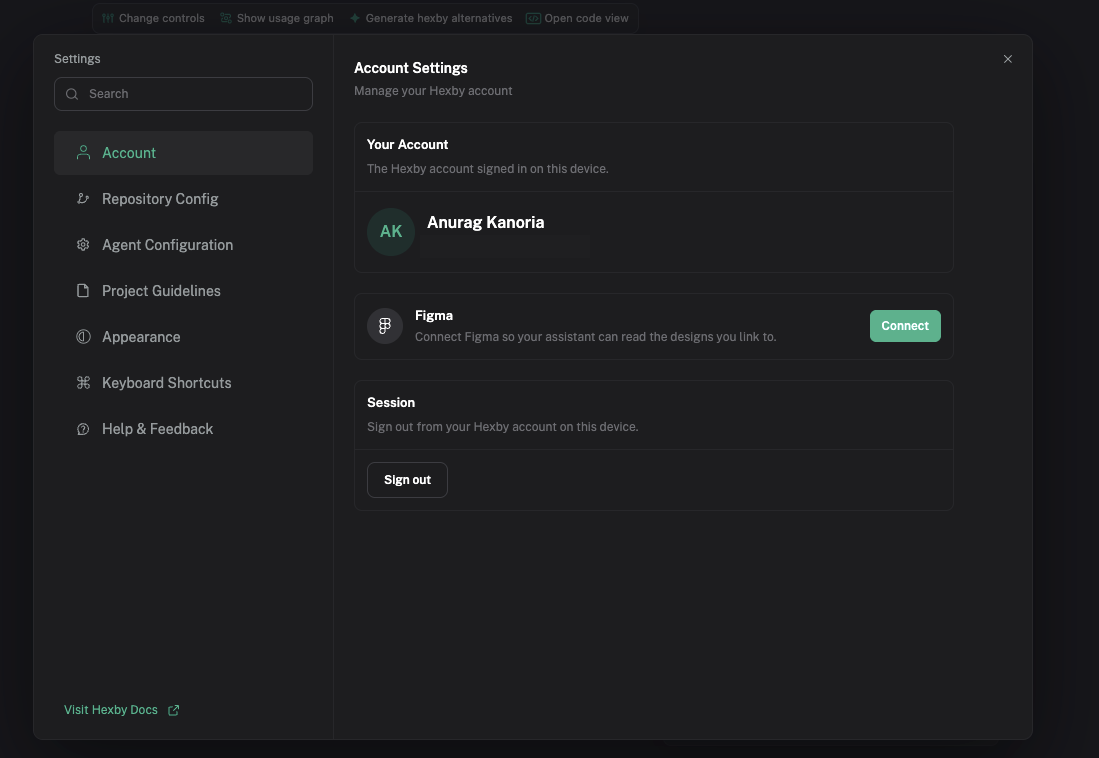
The integration uses read-only access to Figma files and libraries. It does not write changes back to Figma. If you decline access or connect the wrong Figma account, start the connection again from Settings.
What you can do with a Figma reference
Once connected, give your assistant a link to the relevant Figma frame or library. The design provides visual context for code work in your project; it does not change the Figma file.
- Create a screen or component: ask the assistant to build a new screen or reusable component from a frame. Name the route, interactions, and existing project patterns it should follow.
- Update an existing component: select the component in Hexby, share the Figma reference, and describe what to match and what behavior or API to preserve.
- Review a design system: link the relevant Figma library and ask the assistant to compare its components, styles, or tokens with the project and point out inconsistencies.
- Iterate on an implementation: compare the current UI with the linked frame, identify what differs, then request a focused code change.
Share a design in chat
Once the Figma card shows Connected, copy a share link to the screen or frame you want to build, then paste it into your project chat. Tell the assistant where it belongs and what existing behavior to preserve. For example:
Implement the event registration screen from this Figma file in the current project. Keep the existing routing and component patterns, and show me the running preview when it is ready.
Use the link to the exact frame or screen, and name the route in your request so the assistant knows where it belongs. Make sure the connected Figma account can access the file; a link alone cannot grant access to a private design.
Review the implementation
When the assistant finishes, compare the screen with the Figma design in Preview App, then check the changed files in Review Changes. Ask for a focused refinement if a key detail or screen size differs.
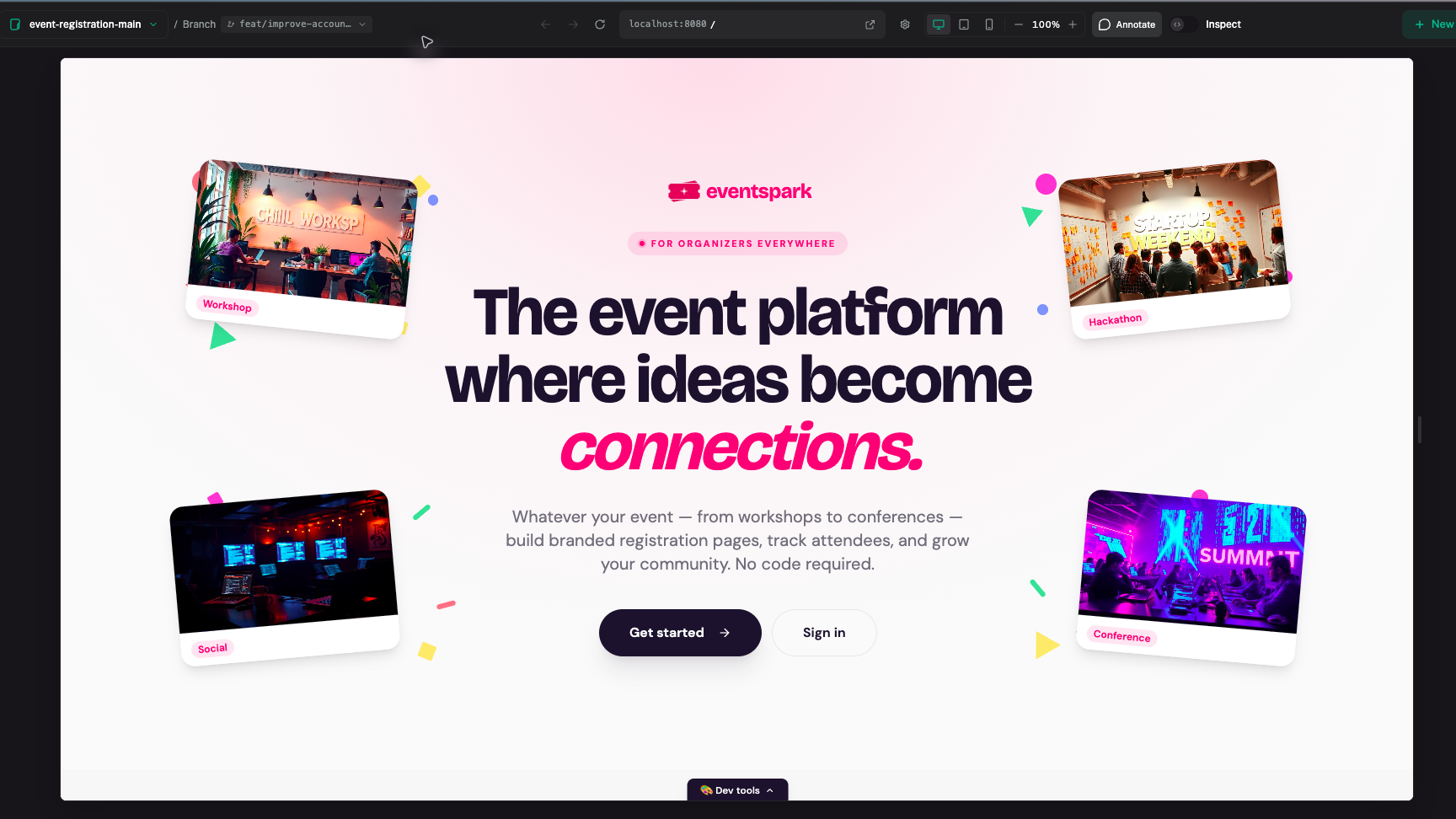
For the full visual-to-code review, see Make and Review Changes.
If the link cannot be read
- Open Settings → Account and confirm that the Figma card shows Connected.
- Confirm that this Figma account can open the file.
- Paste the full Figma link again and specify the frame, page, or screen you want implemented.
- If access was denied or the connection failed, return to Settings → Account and connect Figma again.
Next step
Follow Make and Review Changes to inspect and share the implementation.