
Explore with Hexby
Preview redesigns, polished interfaces, Figma or screenshot matches, and new features before changing project code.
Explore with Hexby lets you try an idea before deciding to build it. Your connected AI assistant creates an interactive preview using components from your app and opens it beside chat, where you can explore designs and feature ideas before implementation.
Exploring does not change your project source. A preview can be sent back to the assistant for implementation when a direction is ready.
Start exploring
Explore requires an open project and a connected AI assistant.
You can select a component before opening Explore with Hexby to focus the idea on it, or open it from the top toolbar with nothing selected to explore ideas using components and screens across your app. Opening it from a component's menu automatically selects that component.
After Explore opens:
- The selected component appears above the prompt box.
- Write a prompt, or choose a suggestion and edit it.
- Paste an image as a visual reference.
- Select Start exploring.
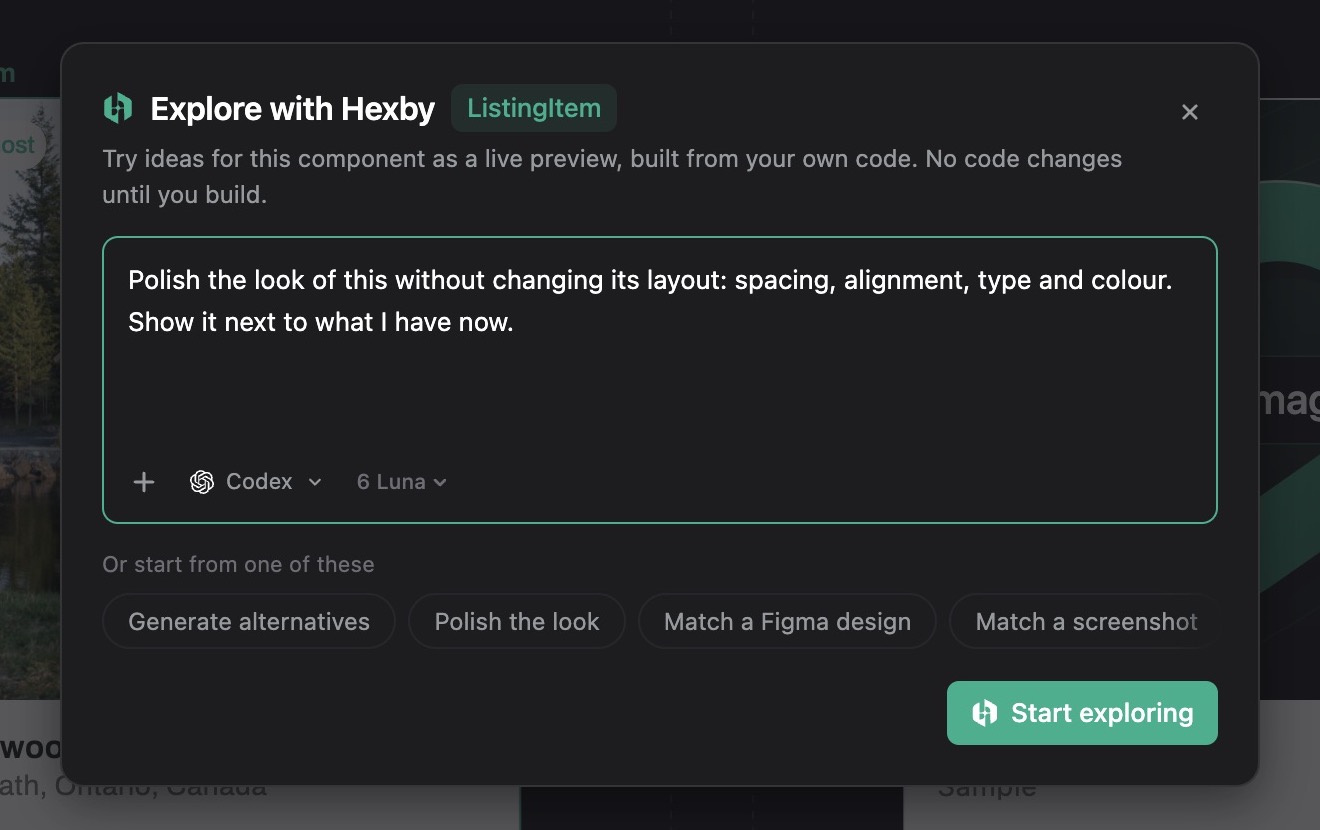
Describe the idea
A useful request explains the problem, what you want to compare, and what should stay the same. For example: “Polish this card's spacing and type, keep its layout, and show it beside the current design.” Suggestions adapt to your selection:
Explore a component or section
- Generate alternatives: compares new designs with the current UI, such as two different layouts or one bolder version.
- Polish the look: improves spacing, alignment, typography, and colour while keeping the existing layout.
- Match a Figma design: a link to the exact frame lets Hexby rebuild the selected UI beside its current version. Figma must be connected with an account that can access the file; the request can also name behaviour that should stay the same.
- Match a screenshot: a reference image and a note about what should match, such as spacing, colours, or layout, help guide the redesign.
- Show all states: includes hover, empty, loading, validation error, and success states. Short, long, or missing content can reveal layout issues.
- Try a new feature: previews a flow such as saving an item, viewing an empty list, and removing an item.
Phone, tablet, and desktop sizes, narrow and wide containers, and light and dark themes are also available for comparison. Text can be revised for clearer wording or easier-to-read headings when needed.
For plain HTML sites, Hexby uses pages as the subject instead of components.
An exploration can also start in an existing Chat with wording such as “show me options” or “let me preview this before building.” If the assistant asks whether you want options or an edit, choosing options starts with a preview.
Try the preview
Starting from the Explore question box opens a new chat thread; a request made in Chat stays in that conversation. Progress appears in chat while the preview is prepared. A closed preview can be reopened with Open on its exploration card.
The controls depend on the request. For a design comparison, Compare shows a proposed design against Current, the existing UI. A feature preview can include a clickable prototype, screens, a flow diagram, and build notes. Available device, width, and zoom controls show the design at different sizes.
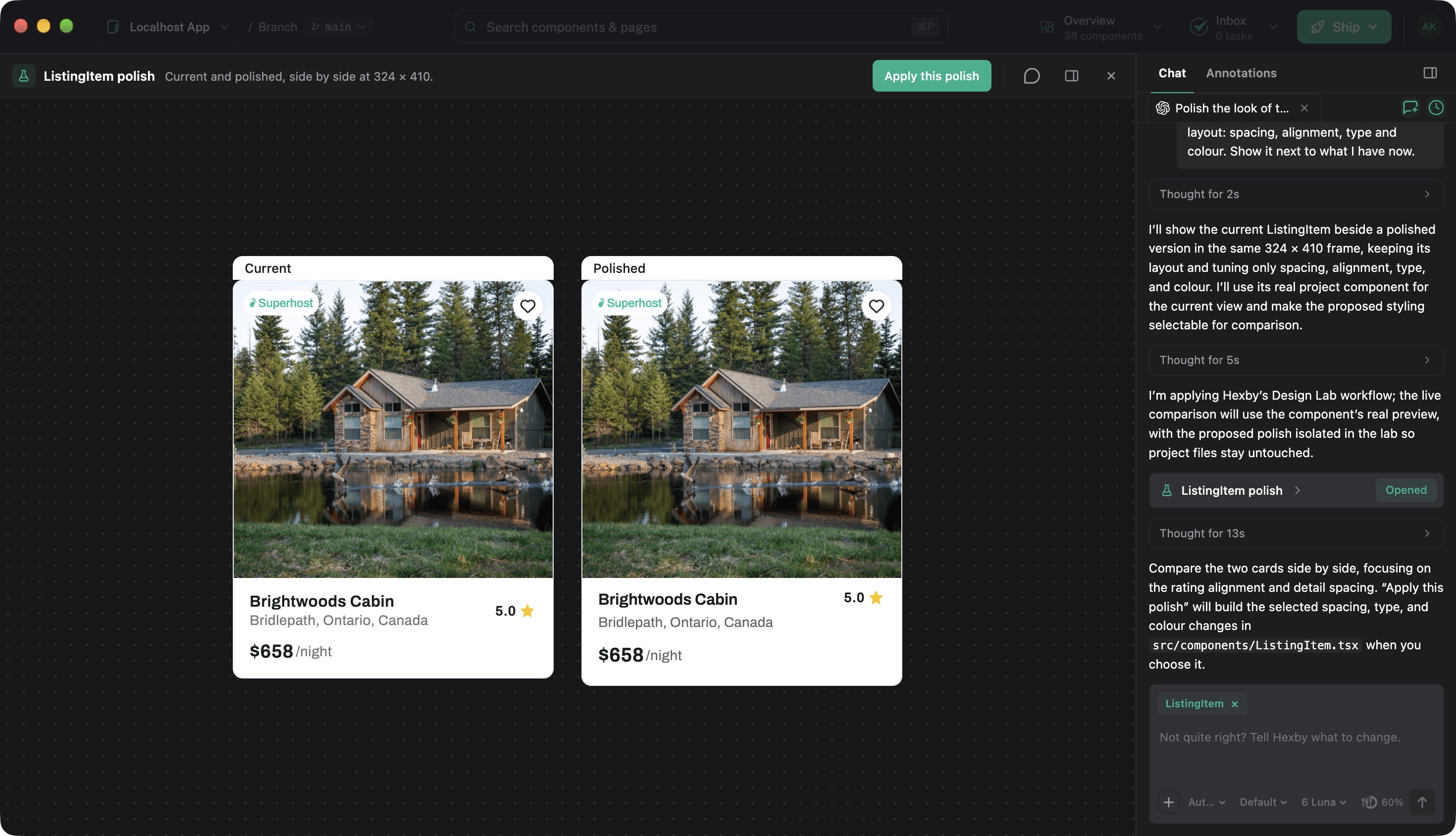
The prototype helps evaluate a proposed experience and its important interactions and states; implementation and testing in the app are still needed.
Refine what you see
Changes can be requested in the chat beside the preview, or through Revise page beneath it when chat is collapsed. Revisions update the exploration without changing project source.
I prefer the second direction's layout, with the error state shown on mobile.
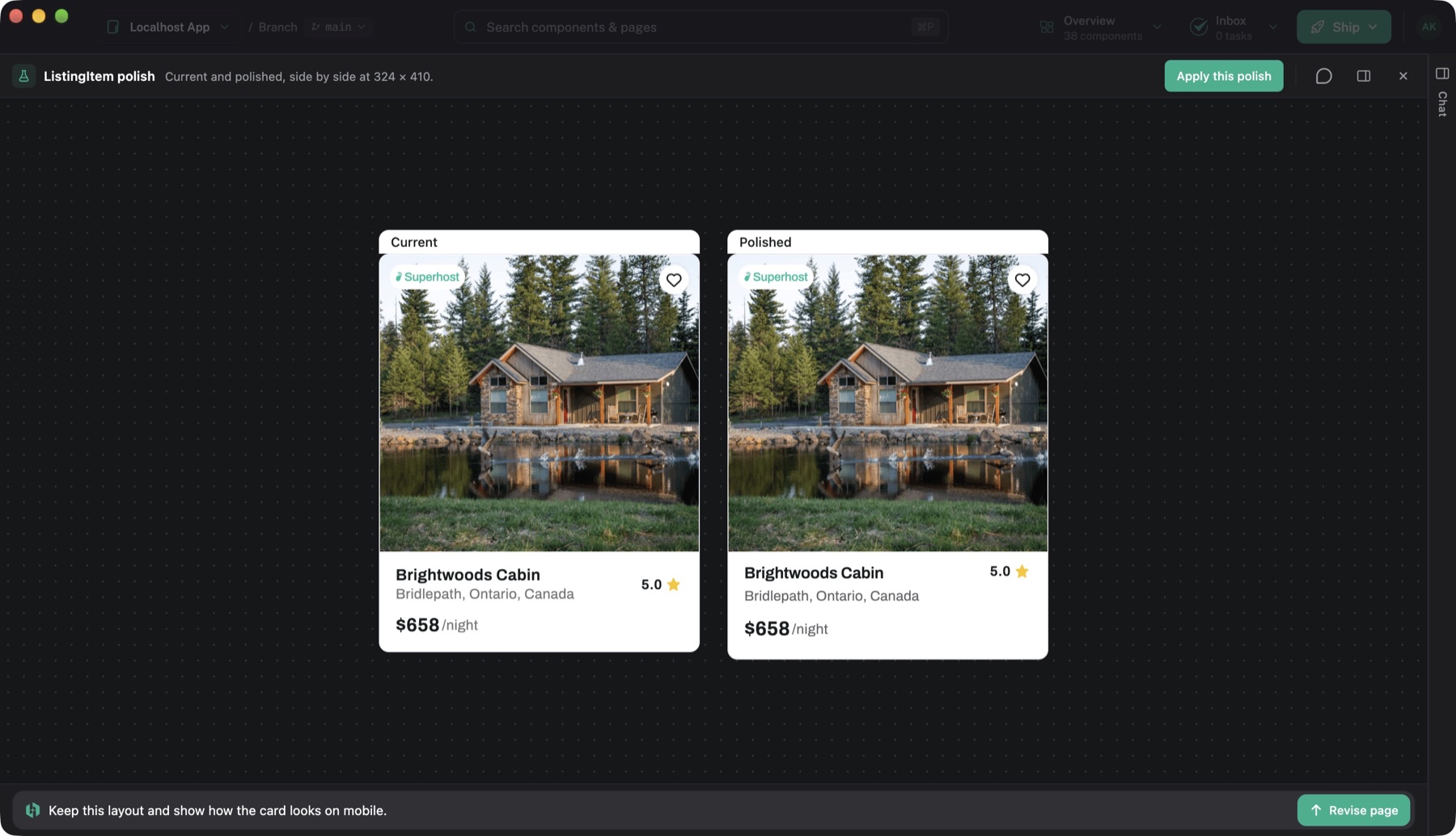
Precise feedback can be pinned to elements with the annotation button in the preview's title bar. Unsent pins are included with the next chat message. The adjacent notes button opens a panel where notes can be sent alone with Send note or Send notes.
Selecting a note returns to the view and device size where you wrote it.
Reopen later
Explorations are saved locally and can be reopened from their chat cards after restarting Hexby.
Build the chosen direction
The preview's title bar includes an option to continue with the chosen direction, such as Apply this polish. The label depends on the preview. Hexby sends your choice to the same chat and closes the popup so the assistant can implement it in your project.
The resulting project changes and updated previews can be reviewed with Make and Review Changes.