
Create a Plan
Agree on the work, choose who implements it, and keep the task on its own branch.
Use a plan when a change needs a clear scope before implementation, or when you want to hand the work to someone else. Open Ship → Create a plan to describe what you want your team or coding assistant to build.
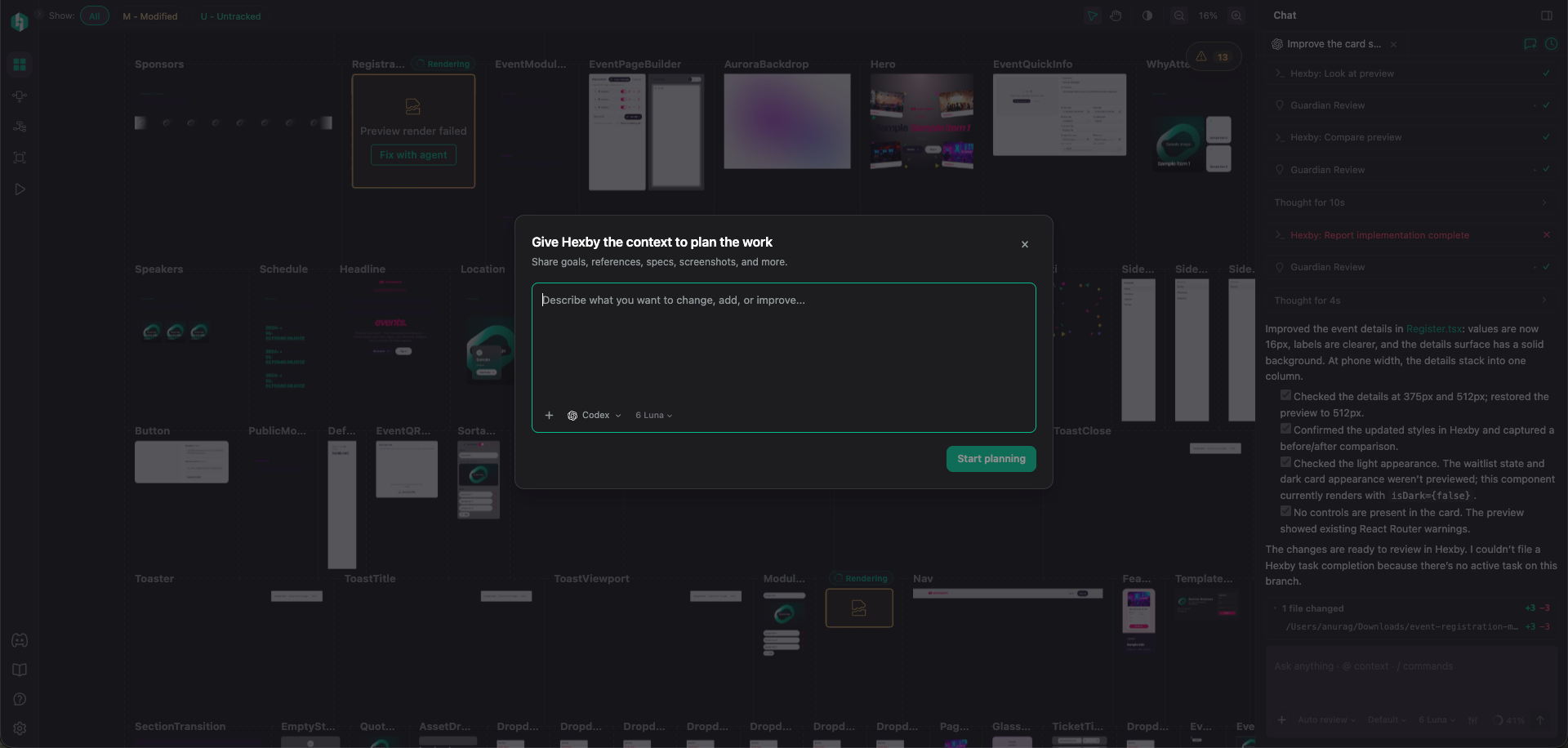
Describe the work
Explain the outcome, the relevant screen or component, and what should stay the same. Attach screenshots, specifications, or notes that help explain the task. Choose your connected agent and model, then click Start planning.
For example:
Improve the registration flow on mobile. Keep the existing fields and routing. Plan the layout changes, validation states, and checks needed before we implement it.
The assistant reads the project and writes an implementation plan. Planning gives you a document to review before code changes begin. If Hexby says the current branch is behind its remote version, update it so the plan uses the latest code.
Review and refine the plan
Open View plan and check the proposed scope, implementation steps, and how the result will be checked. Suggest changes to the plan or ask the assistant to revise it until it describes the work you want.
A clear plan gives the person implementing it the same context you used to make the decision. Include the intended outcome, constraints, and any open questions.
Choose who implements it
When the plan is ready, choose one of the three options:
- Start implementation: your connected coding assistant begins implementing the plan in the current project.
- Assign to a team member: enter your teammate’s email, add an optional summary, and click Assign. They receive a notification and can read the plan.
- Assign to myself: add the task to your own pipeline and start it later.
You can assign work to a teammate even if they have not joined Hexby or connected the repository yet. They will need repository access and the project set up when they open the task to implement it. Assigning a task gives them the plan; it does not grant access to a private repository.
Use Overview to find tasks in Not Started, Ongoing, and Completed. Turn on Assigned to me to focus on your own work. Open a task to see its plan and status, or choose Start task when you are ready to begin.
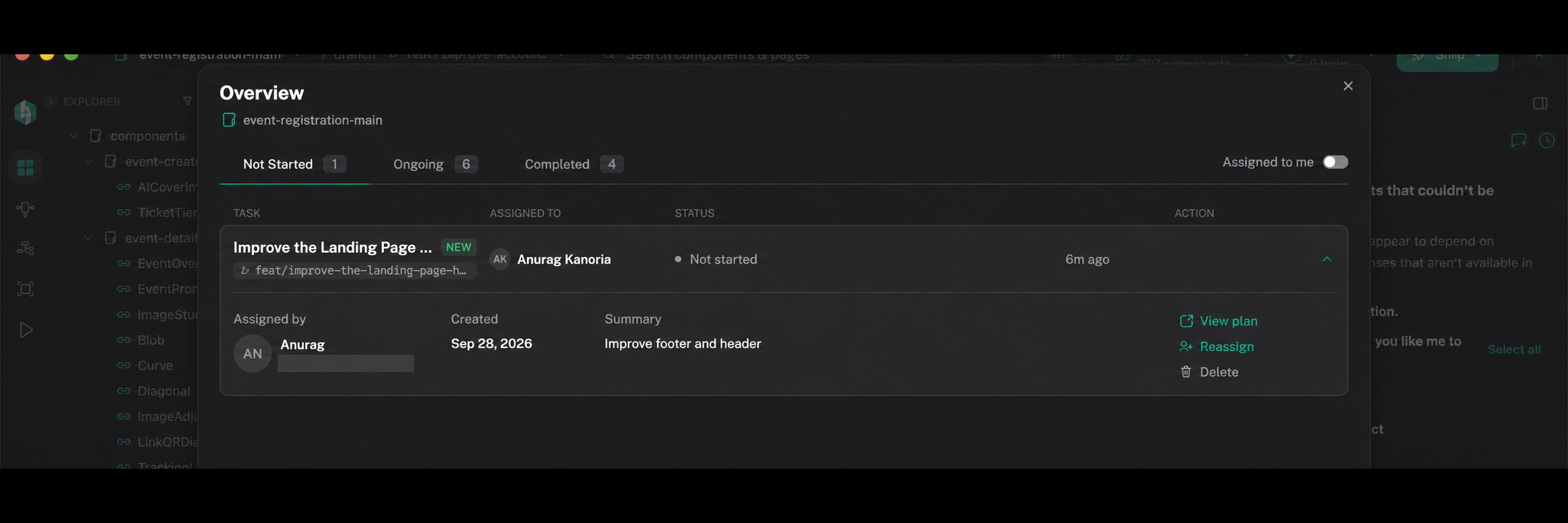
Reassign a task
In Overview, expand the task and select Reassign to choose a new assignee. Use this when someone else should take over the work. Check Assigned to to see who currently owns the task.
Work on the task’s branch
A task has its own branch. During planning and assignment, Hexby can reserve the branch name; starting implementation creates the branch and switches to it. Opening an existing task switches to its branch so you continue with the right code and task context.
To move between work, open the branch picker in the project header and select the branch you need. You can also open a task from Overview to return to its branch. Check the branch shown in the header before continuing implementation.
If you have uncommitted edits, Hexby asks you to commit them on the current branch or stash them before switching. A commit saves the edits in that branch’s history; a stash sets them aside in Git for later. Those edits do not come along to the branch you switch to.
Review the completed work
Once implementation is ready, follow Make and Review Changes to submit the visual changes, get feedback from PMs and teammates, and hand off the approved work.