
Component View
Inspect one component's preview, states, and usage.
Use Component View to check a component’s appearance and important states before changing it. In All Components, click the component preview and choose Open in Component View from its actions.
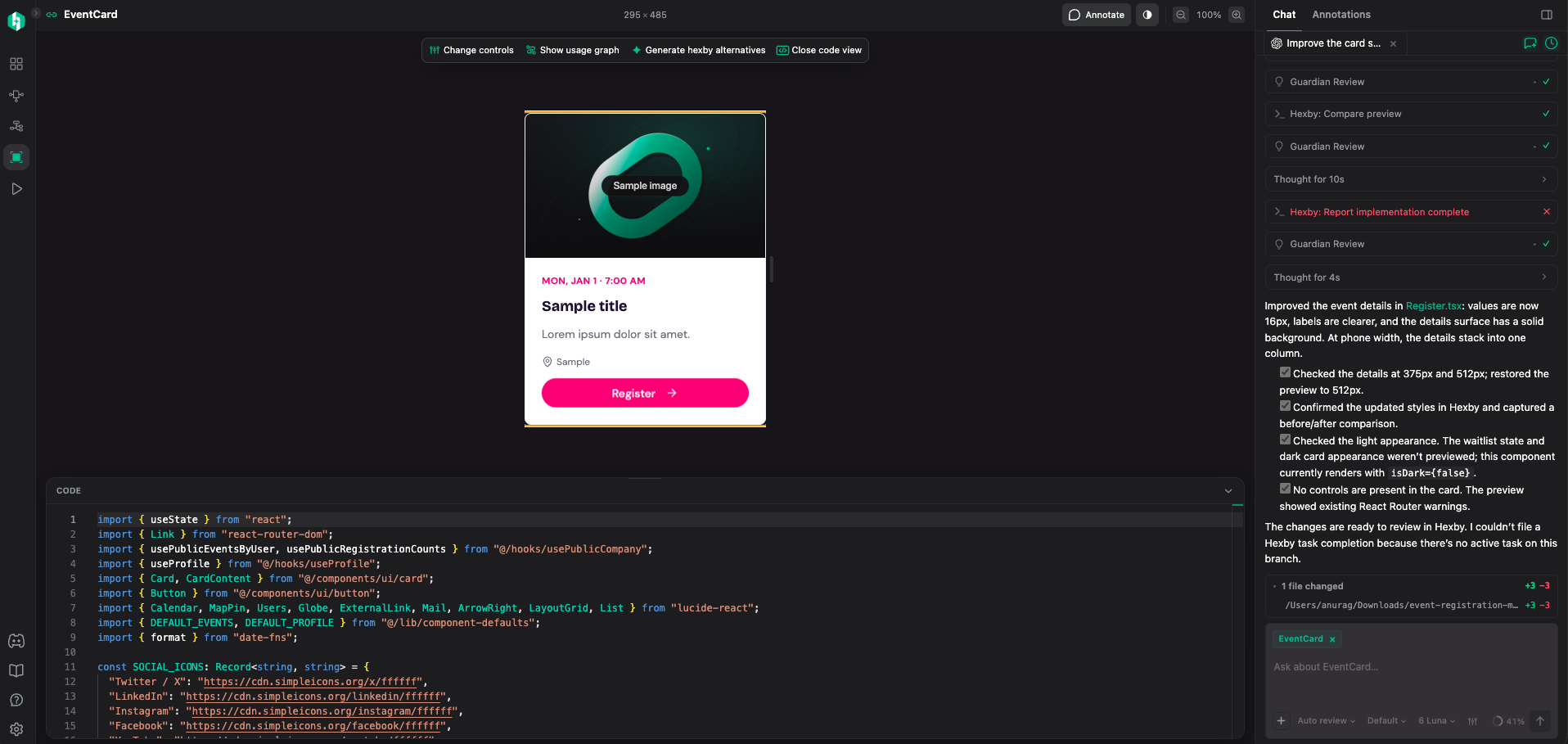
Open the component in its own view to inspect its rendered appearance and available states before checking the usages elsewhere in the project.
Start with the preview
For example, check how a success card handles a long event name before asking your agent to improve its mobile layout.
Use the preview to inspect the component:
- Resize it to check responsive behavior
- Change the background when contrast is hard to judge
- Open an available state or scenario
The preview uses example data. Check the full app before sharing when navigation, sign-in, or the surrounding screen matters.
Check the states that matter
Try the states relevant to your question: empty, loading, error, open, closed, selected, disabled, or focused. Check short and long content at narrow and wide sizes too.
The available states depend on what Hexby can identify. Preview values help you inspect the UI; they do not change your production data or component API.
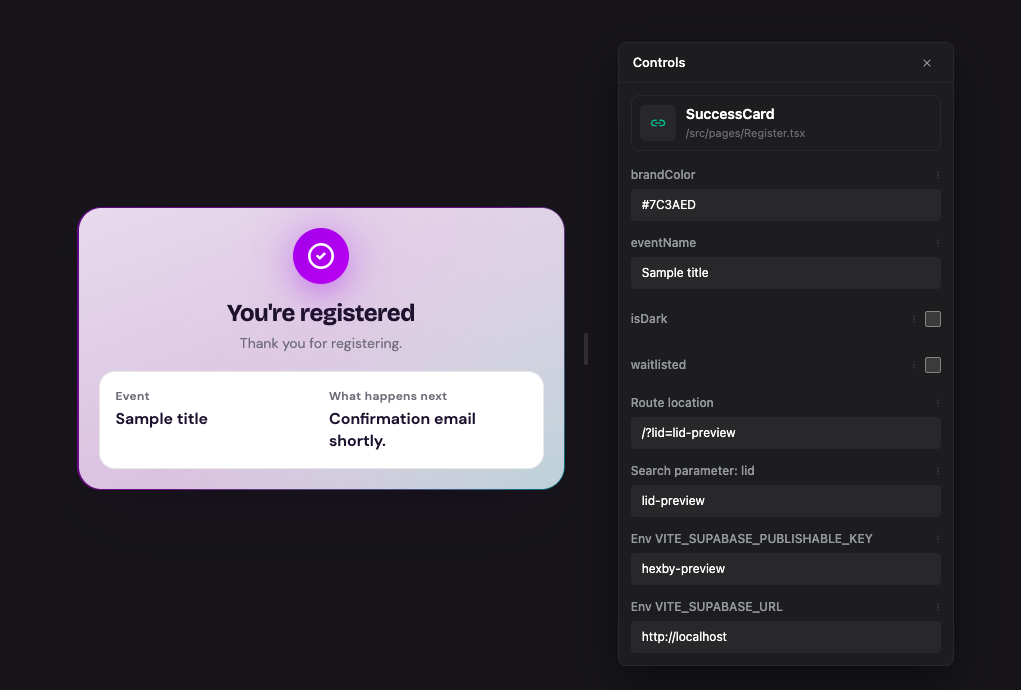
See usage and related pieces
The usage area shows which pages and other components contain it. Check it before changing UI that appears in more than one place.
Open the usage graph for direct parents, Pages for one screen, or Component Map for the wider project. Related components and dependencies can help you reuse an existing pattern.
Ask for help or make a change
Ask your connected assistant about the selected component when you are ready to explore or change it. The assistant can use the component and project context to explain or update the implementation. Review changed files in Review Changes.
If the preview is blocked
Read the message beside the preview, then click the Fix with agent button. Keep the investigation in chat. If the component needs safe example data, check AI enrichment. If the issue depends on navigation or app-wide setup, use Preview App.
Next step
When you know what should change, follow Make and Review Changes.