
Product tour
Find the right UI, improve it with your coding assistant, and review the result before sharing.
Use Hexby when you know what should improve in your app but need help finding where it lives in the code. Explore the rendered UI, give your coding assistant the right visual context, then check the result and source changes before you share them.
Choose a view
All Components
All Components helps you find reusable UI across the project. Search by a component, feature, or source file, then open a result to check its preview and usage.
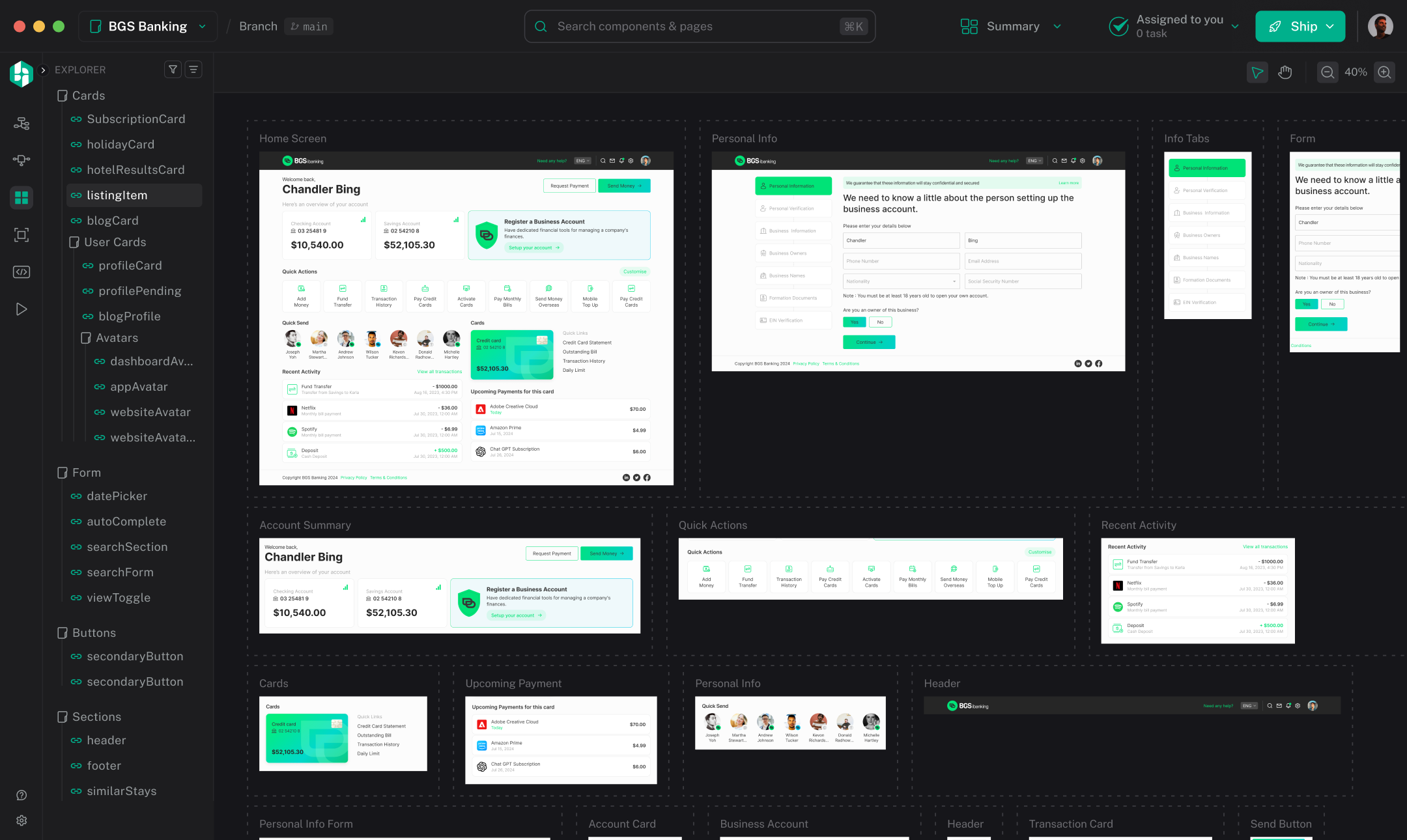
Pages
Pages shows what makes up a screen. Select the page in the Explorer to see its component tree and canvas together. Use the tree to find the component that owns the area you want to change, then select it to open its actions.
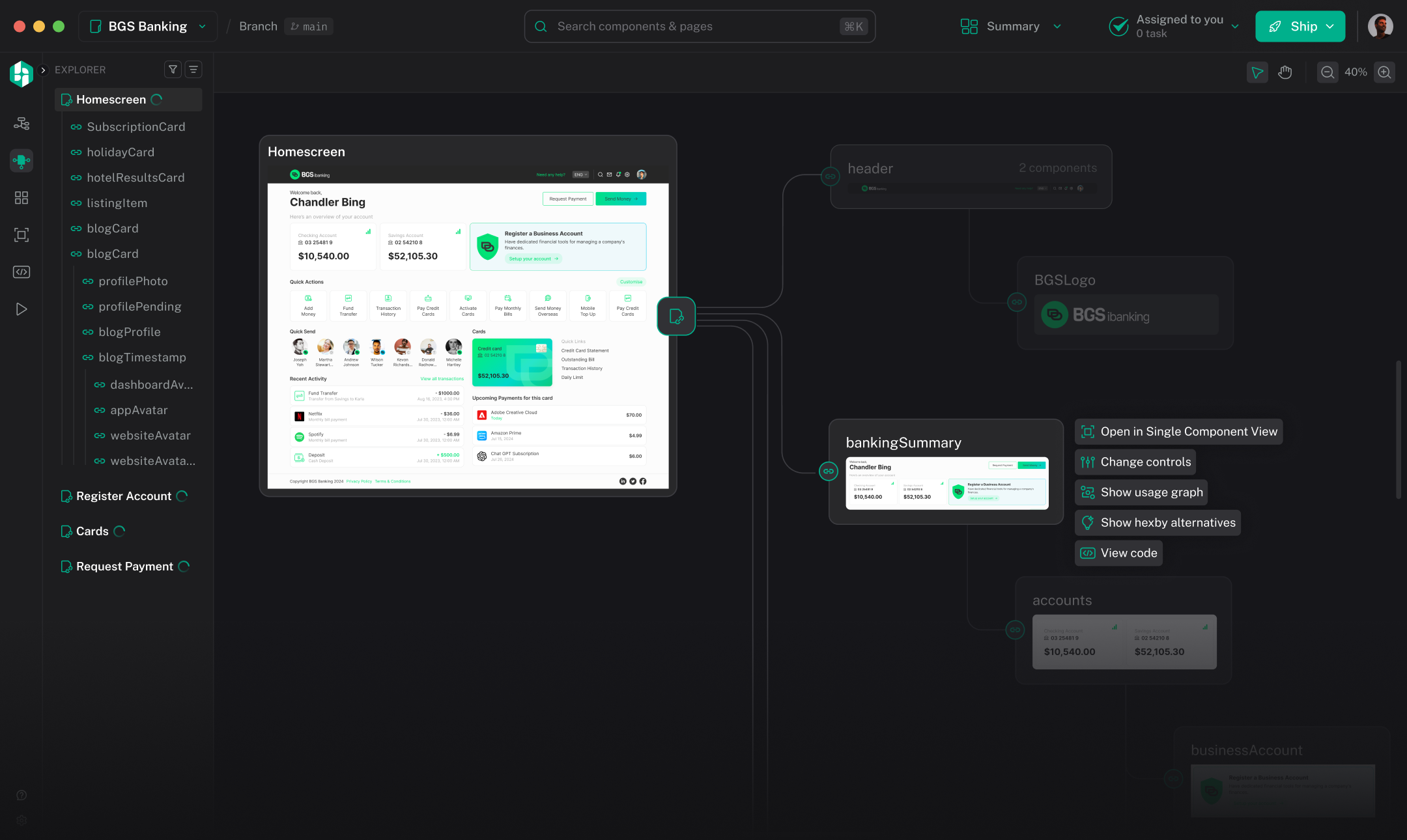
Component Map
Component Map answers which page uses which component. Use it before changing shared UI, or when you are still figuring out where a visible element comes from. Select an item to open its component, see which pages use it, or find other places that use it.
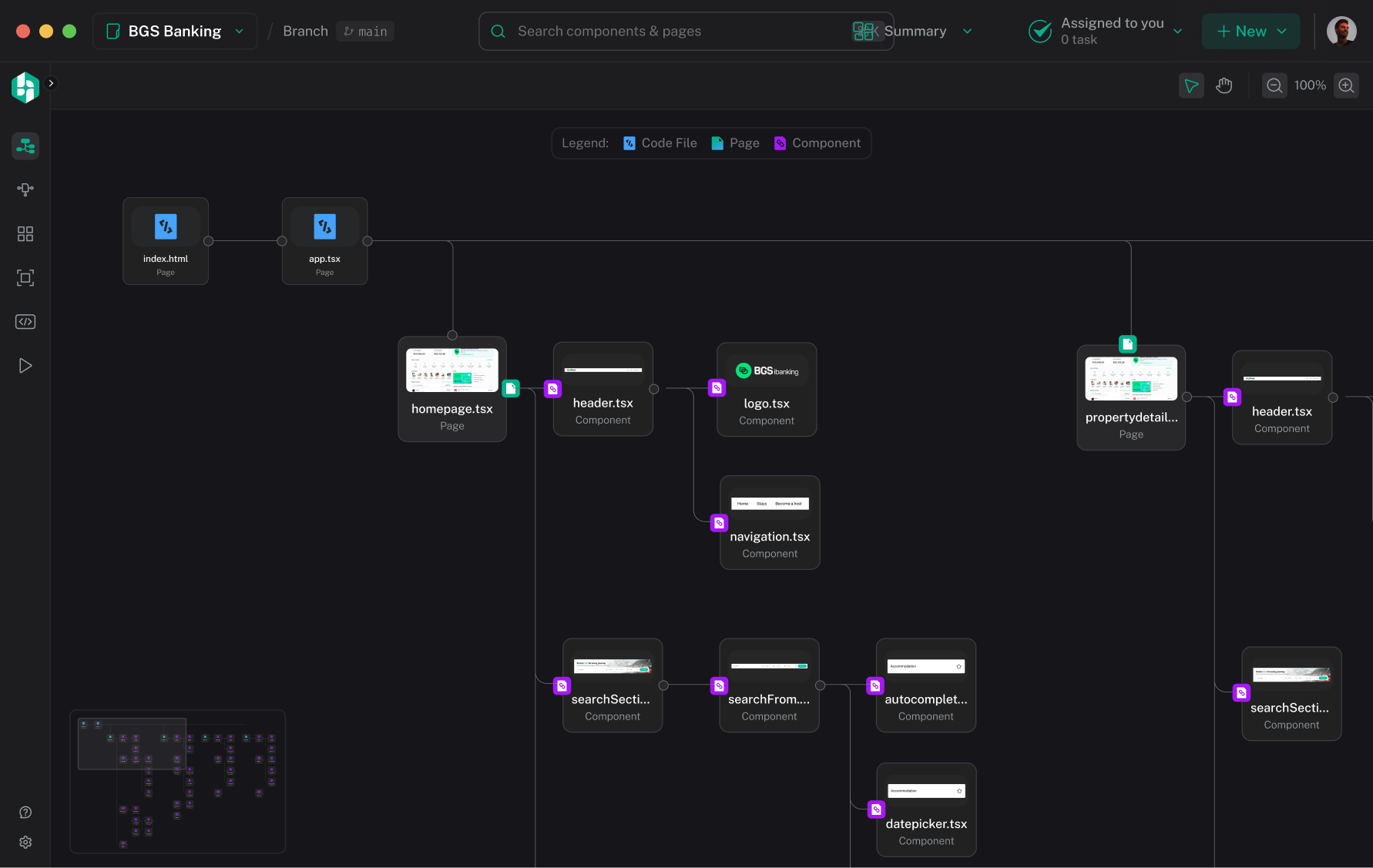
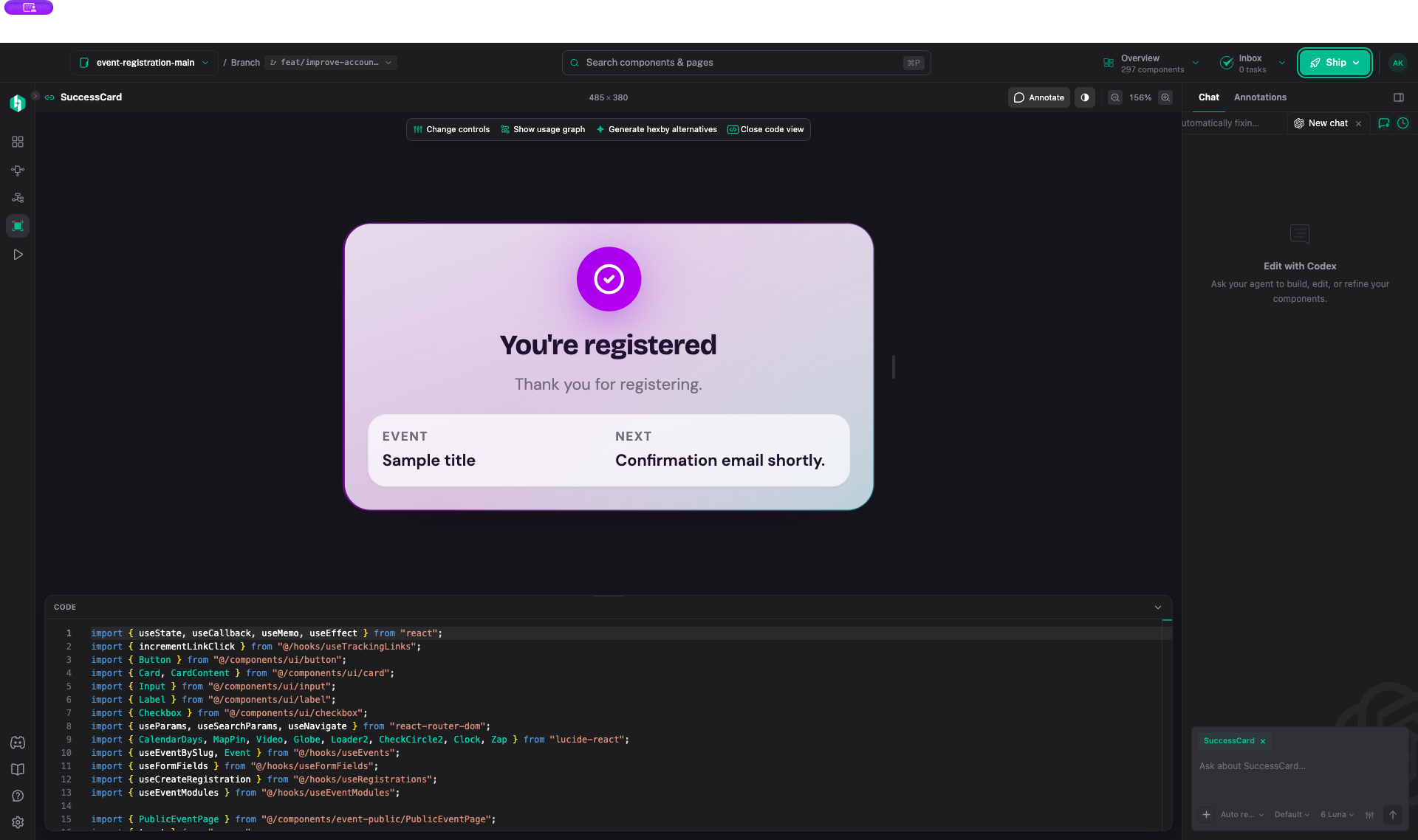
Component View
Component View lets you inspect one component on its own. Check its rendered appearance, available states, and where it is used. This is a good starting point for a focused visual request; return to Pages or Preview App to verify changes in context.
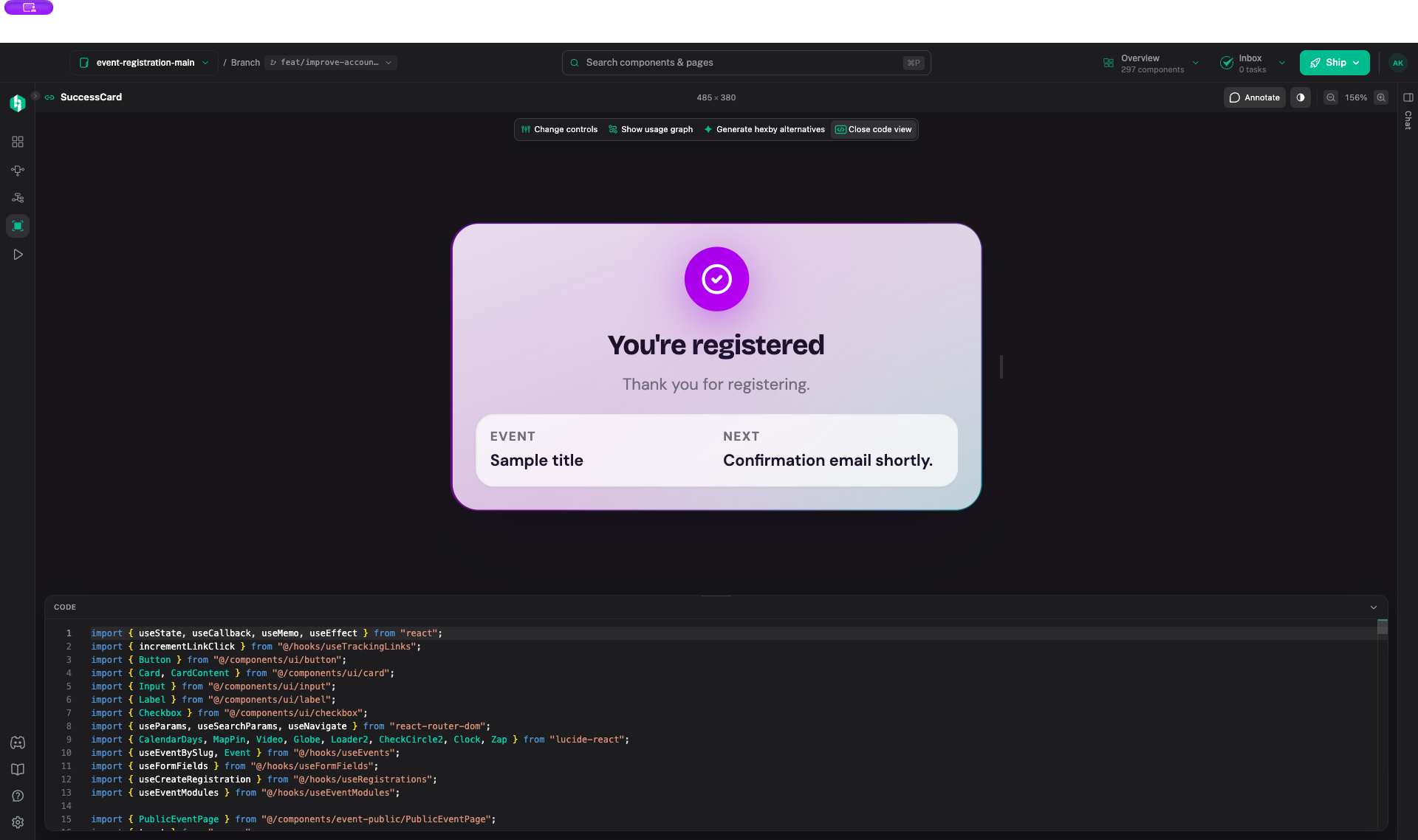
Preview App
Preview App lets you check changes in the running app. Follow navigation, check a route, resize the screen, or inspect behavior that depends on app-wide setup. Use a component preview for one isolated element and Preview App for route-level behavior.
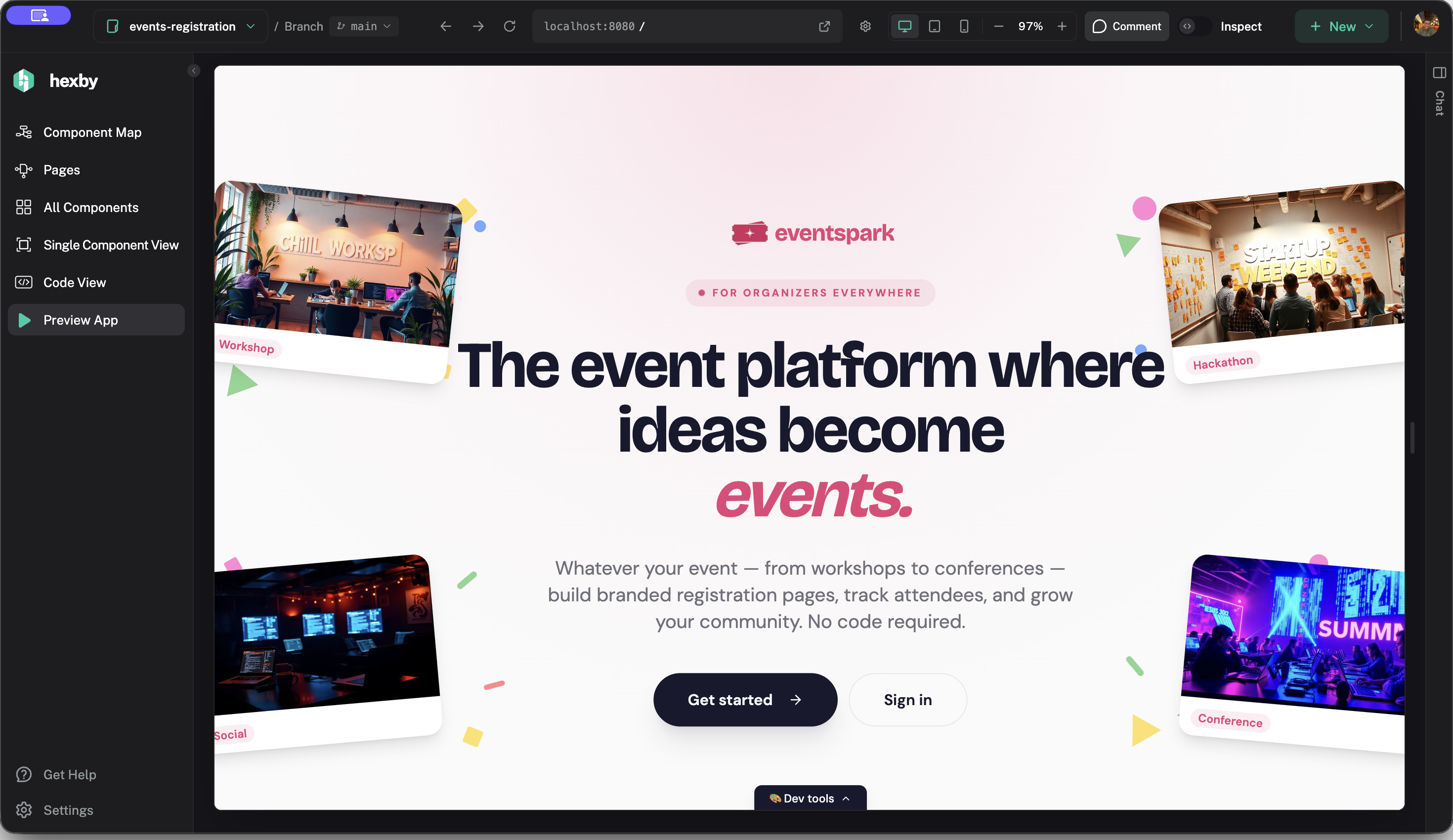
For details on each view, see All Components, Pages, Component Map, Component View, and Preview App.
Choose how to make the change
Select the page or component first so your request starts with the right visual context. Then use the approach that fits the task:
- Point out a specific issue: Use Annotate on the preview, select the element, and describe what is wrong or what should change.
- Ask for a code change or explanation: Open Chat and describe the outcome in plain language. For example: “Make the success message easier to scan on mobile. Keep the current colors and make the next step clear.” You do not need to repeat the component name after selecting it.
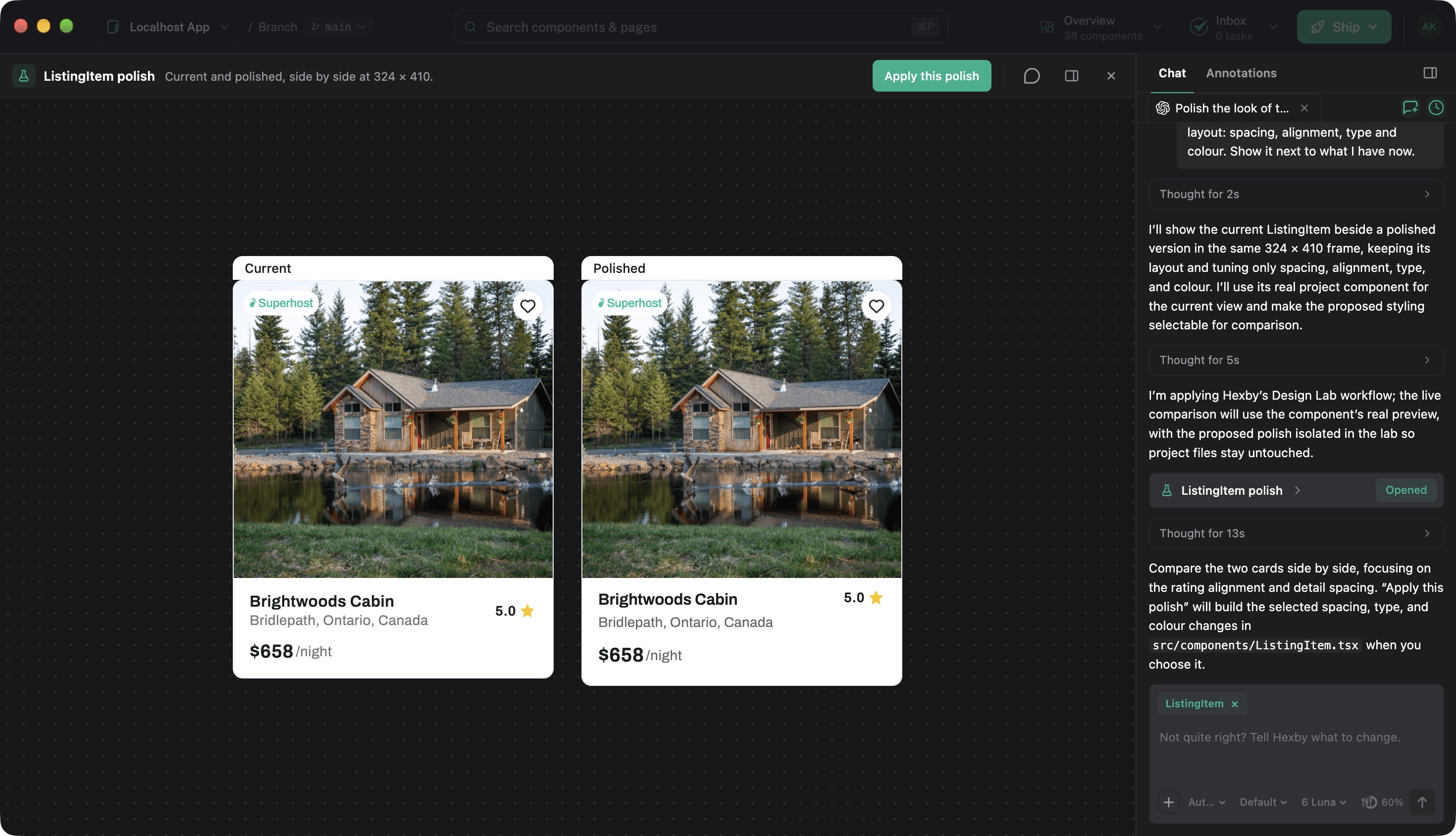
- Compare directions before editing code: Explore with Hexby previews visual options beside the original. A direction can be refined in chat or carried forward for implementation by your assistant.
When a direction is ready, your assistant can implement it in project code; the source changes and updated preview can then be reviewed.
Preview controls can help test copy, data, or styling, although some edits are temporary. Permanent changes need to be made in project code by the connected assistant. AI Assistant, Explore with Hexby, and Make and Review Changes cover the full workflow.
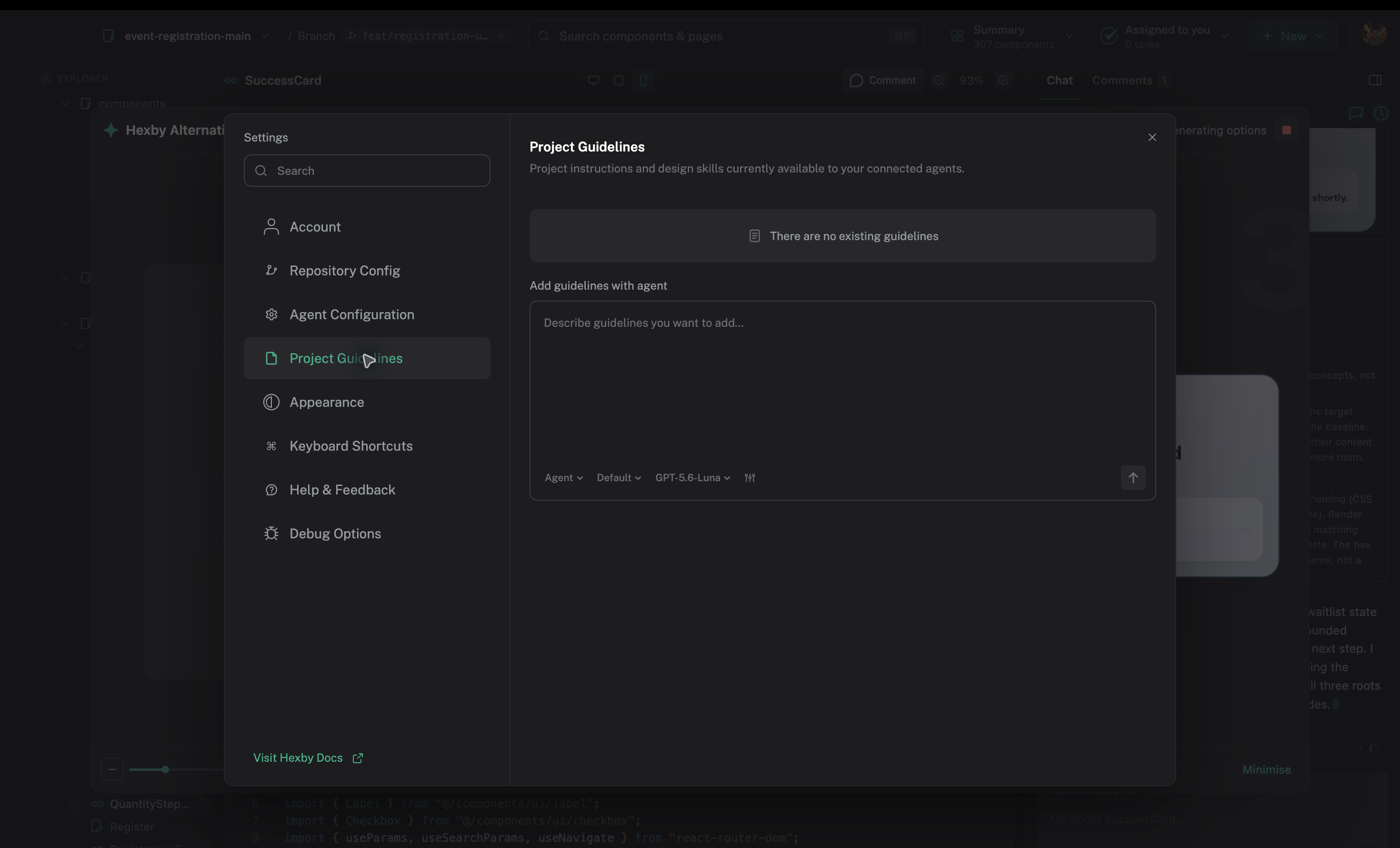
Set project context once
Open Settings when a preference should guide more than the current request:
- Agent Configuration: connect or choose the coding assistant that will work with your project. See AI Assistant.
- Project Guidelines: record reusable rules, such as the existing button styles, accessibility expectations, or responsive behavior, so you do not have to repeat them in every prompt. See Project Guidelines.
- Account: connect services used by your workflow, including GitHub, GitLab, Bitbucket, and Figma. Connect Figma before using Figma to code.
- Appearance and Keyboard Shortcuts: adjust how Hexby looks or look up faster ways to navigate the workspace.
Plan, review, or hand off
When you are ready to move beyond the current preview, open the Ship menu and choose the action that matches what you need next:
- Create a plan when the work has several steps and you want to plan or assign them before implementation. See Create a Plan.
- Submit for design review when you want a before-and-after review of the UI, a place for comments, and a teammate’s approval. This opens Review Changes; share the review link so your teammate can approve or request changes.
- Handoff to Devs when the code is reviewed and ready for a GitHub pull request. Confirm the repository and branch before completing the handoff. GitLab and Bitbucket users can commit and push their changes, then open a merge request or pull request on their hosting service.
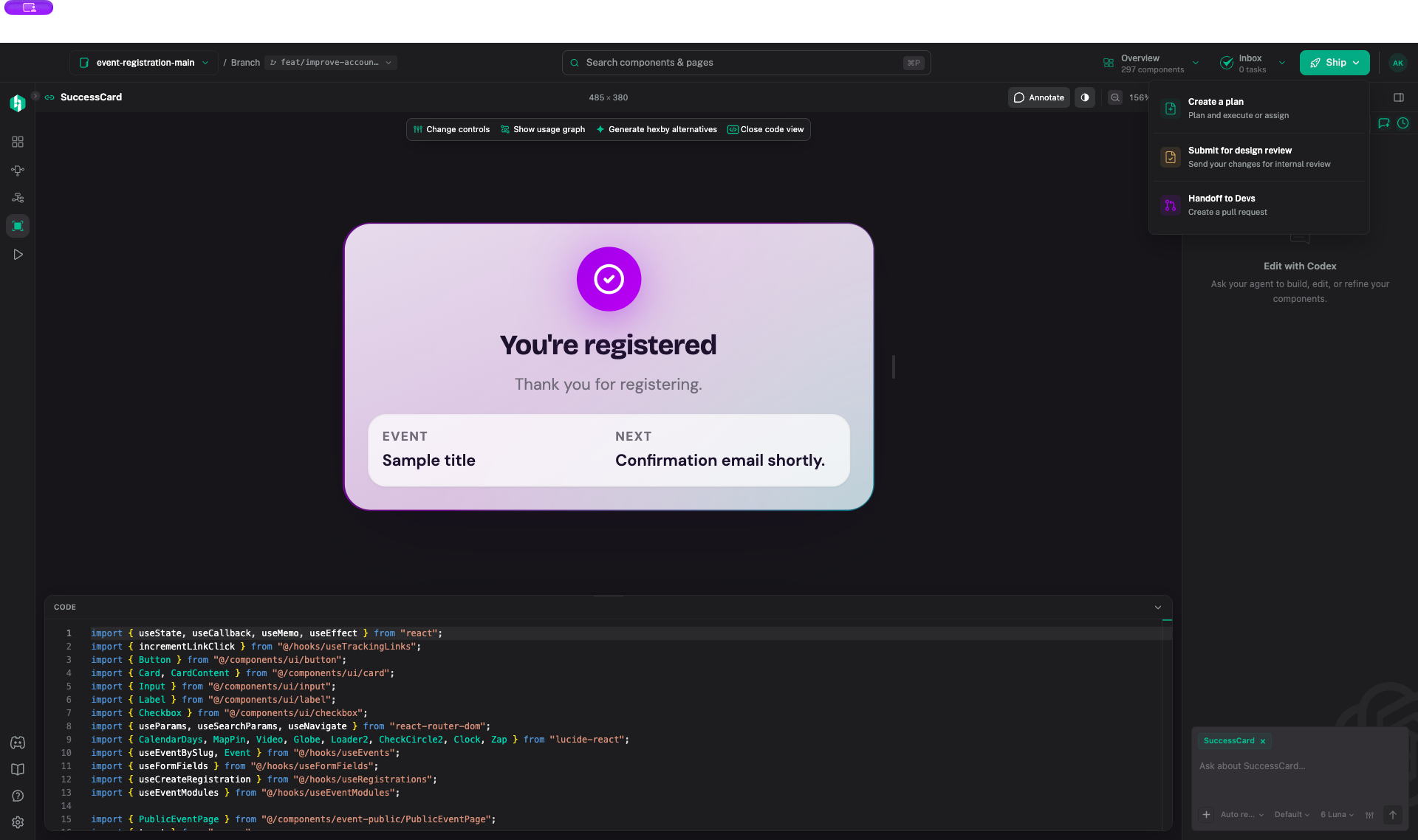
Use the review to discuss visual details and changed files before choosing whether to request approval or continue to a developer handoff.
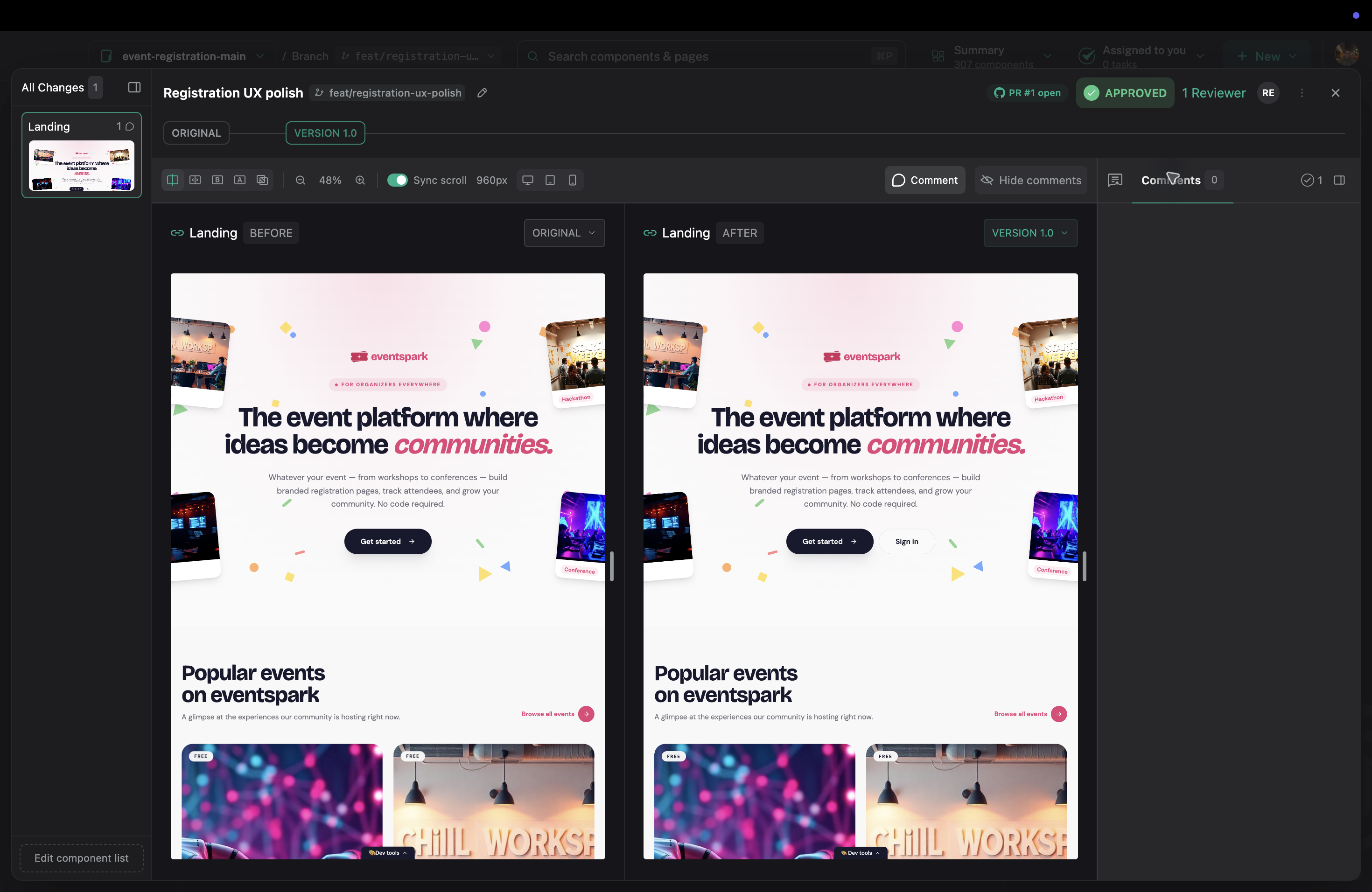
The review is where teammates compare the UI and discuss the change. The pull-request handoff sends source changes to GitHub; it does not merge them for you. See Make and Review Changes for approval and handoff steps.
A practical first workflow
For a small UI improvement, the path is:
- Use Pages to find the screen, or All Components to find reusable UI.
- Open Component View and select Annotate or Chat to give your assistant a focused request.
- Compare the updated preview with the original; use Preview App if the change affects a full route or interaction.
- Choose Ship → Submit for design review to inspect the visual comparison and changed files, then share it or continue refining.
- When the source change is ready, choose Ship → Handoff to Devs for a GitHub pull request.
Start with Install and open a project, then AI Assistant to connect your agent and make your first change.